OMNI Administration
The OMNI administration area includes Templates, Reports, and Lists tabs. The available tabs and actions depend on your administrative permissions.
OMNI Templates
Use the Templates tab to create and manage reusable OMNIALERTS messages.
Open the administrative area and select OMNI.
Select the Templates tab.
Create a new template or select an existing template to edit.
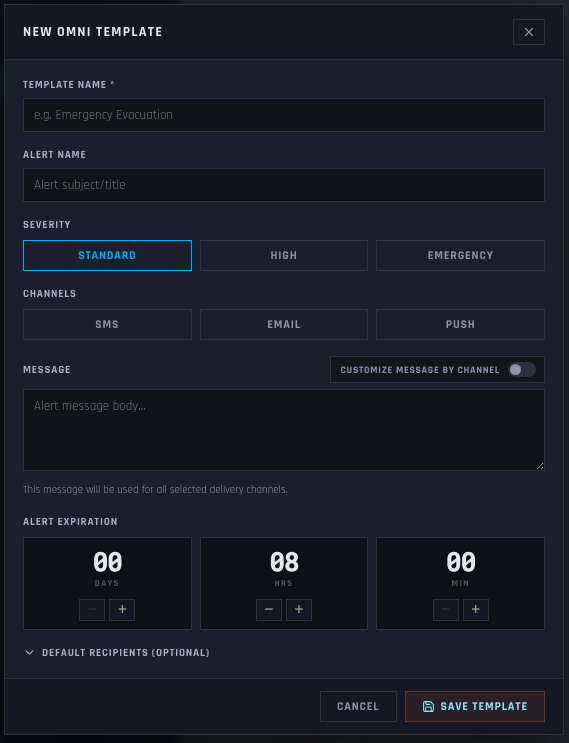
GovCIO COMMANDLINK add or edit OMNI template view
Select one or more recipients as needed.
Save the template.
Note
You can customize messages by delivery channel. SMS messages have character limits, while email messages can include more detail.
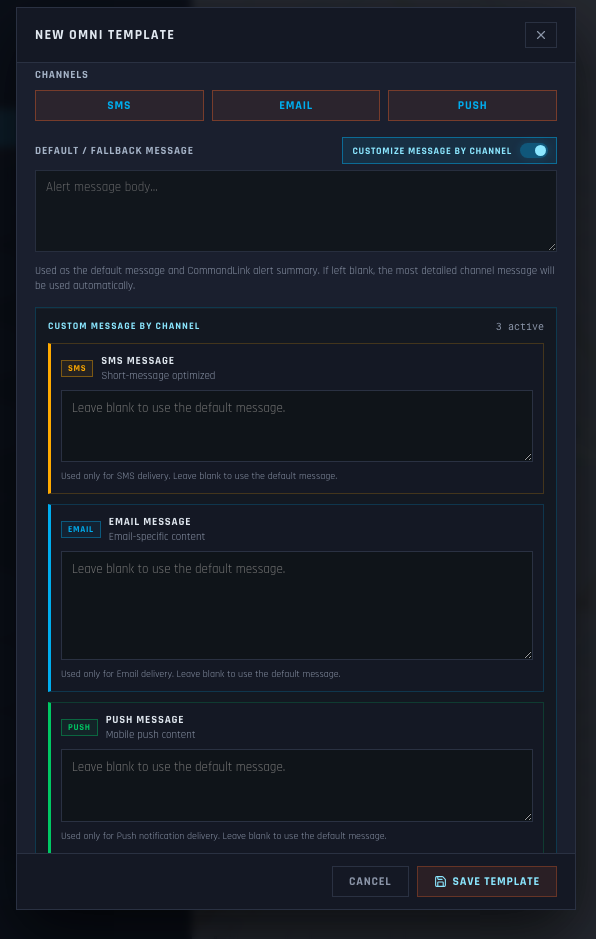
GovCIO COMMANDLINK custom message for different delivery channels
OMNI Reports
Use the Reports tab to review OMNIALERTS delivery and acknowledgment status.
Open the administrative area and select OMNI.
Select the Reports tab, then open the OMNI Alert Dashboard.
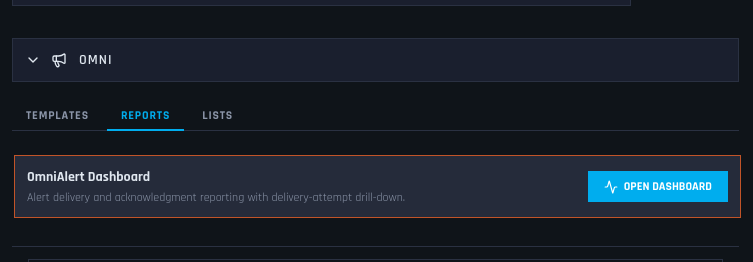
GovCIO COMMANDLINK OMNI Alert Dashboard view
Select an alert to review delivery status by recipient and channel.
Review active, expired, and acknowledged deliveries when those statuses are available.
Resend an alert to unacknowledged recipients when the resend action is available for your role.
OMNI Lists
OMNI Lists group users and units together for quicker recipient selection. Use the Lists tab to create and manage saved recipient lists.
Open the administrative area and select OMNI.
Select the Lists tab.
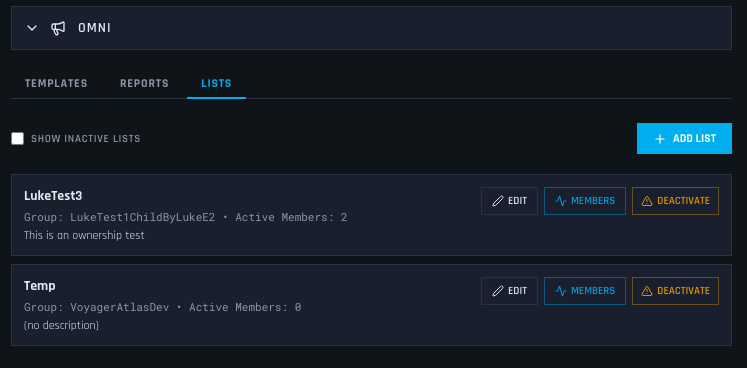
GovCIO COMMANDLINK OMNI Lists view
Create a new OMNI List or select an existing list to edit.
Enter or update the list name and select the users and units to include.
Save the list.
Note
When sending an OMNIALERTS message, select one or more OMNI Lists to dynamically populate the recipient audience.