Administration
Administrative users can manage configuration tasks directly in GovCIO COMMANDLINK.
Administrative Areas
Primary groups
Users
Units
Group-level searches and filters
Activity log access, if enabled
Administrative Permissions and Scope
Administrative access is role-based. The available controls depend on both your assigned group scope and your global permissions.
Group Admin users can view and manage only their assigned root group and allowed sub-groups.
The Add Group button at the base of the group hierarchy is visible only to administrators with the required global permissions.
Group deactivation and reactivation controls are visible only to administrators with the required global permissions.
Group Hierarchy
The group hierarchy can include multiple levels of sub-groups. Indentation and visual line indicators show the parent-child relationship between groups.
Administrators with the required permissions can mark a group as a root group, create child groups, and manage visible groups. GovCIO COMMANDLINK prevents removing the root-group setting when the group still has child groups.
Group Deactivation and Reactivation
GovCIO COMMANDLINK supports soft-delete behavior for groups through deactivation.
Select a group and choose the deactivate action when available.
Confirm the action in the confirmation dialog.
If the selected group still has active devices, deactivation is blocked and a notification appears.
Use the inactive-groups view to display hidden inactive groups when needed.
Reactivate a group either in its previous hierarchy location or at the root level, based on your workflow needs and permissions.
Groups that are inactive are hidden from the default group view until the inactive-groups view is enabled.
Navigate to the Administrative Area
Open the administrative area by Tapping the Admin button in the main navigation panel.
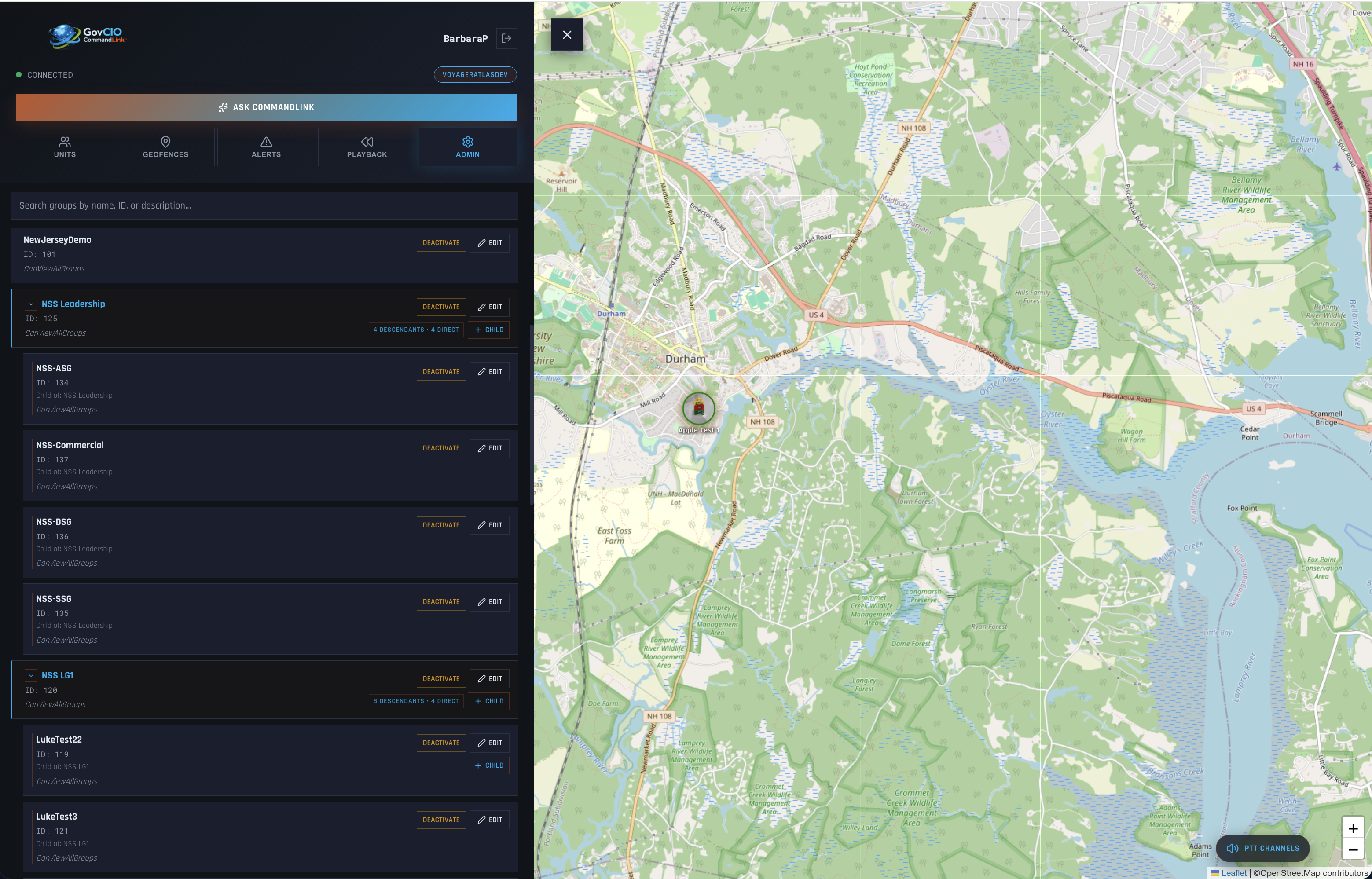
GovCIO COMMANDLINK admin overview view
Select a primary group.
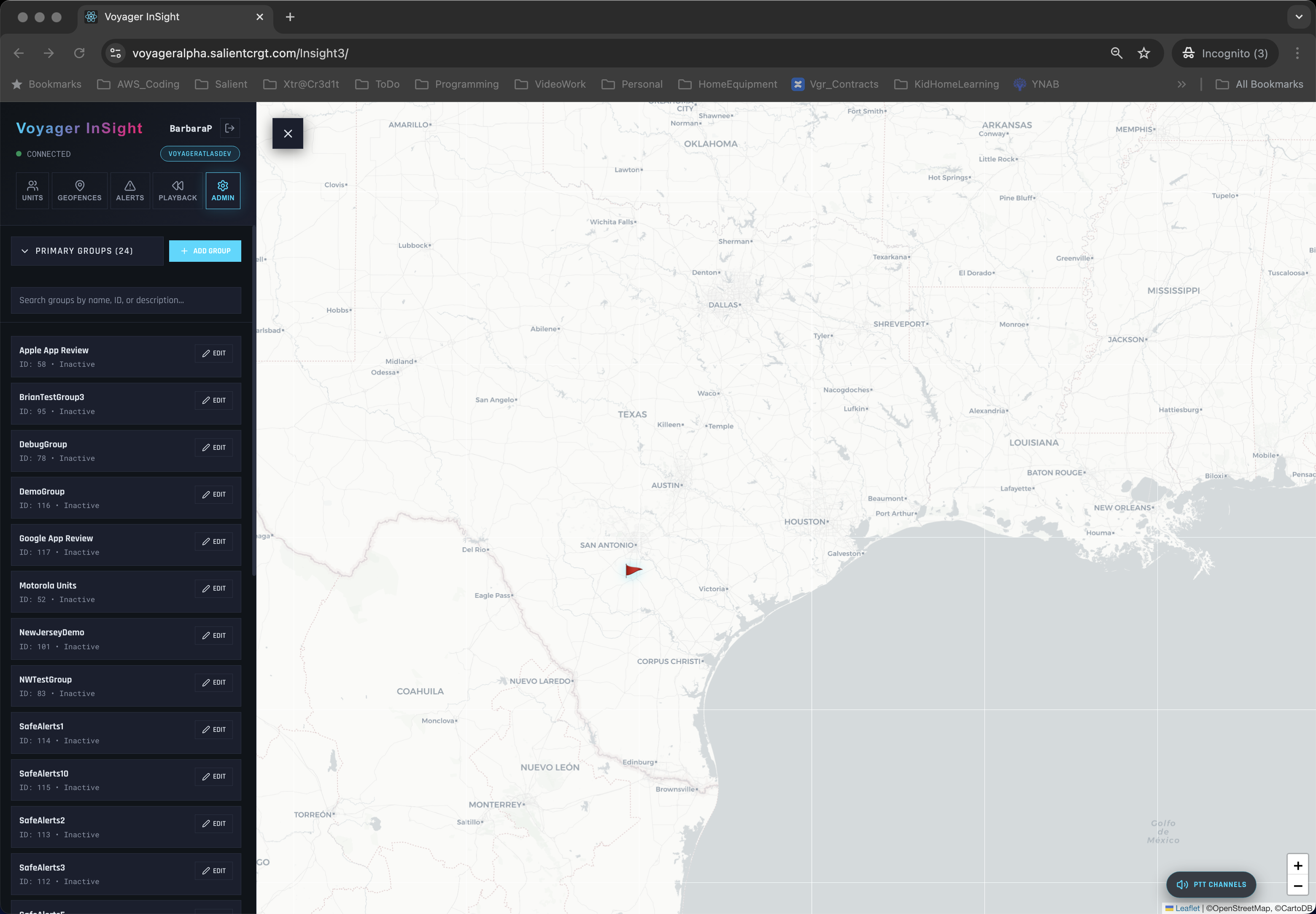
GovCIO COMMANDLINK admin group detail view
Review units assigned to the group.
Add or edit a group, unit, or user as permitted by your role.
Return to the main monitoring view when changes are complete.
Primary Group Management
Primary Group Management allows administrators to create and update primary groups directly in GovCIO COMMANDLINK.
Open the Admin area and select the Primary Groups tab.
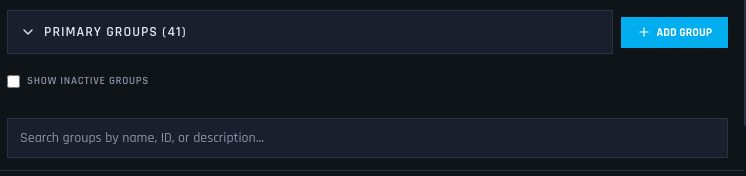
GovCIO COMMANDLINK primary group management options
Note
The Primary Groups section provides the following options:
Select the arrow next to Primary Groups to expand or collapse the section. The group list may disappear briefly while the system updates.
The number in parentheses is the number of groups configured in the system that you have permission to view.
Select + ADD GROUP to create a primary group when permitted by your role.
Use Show Inactive to show or hide inactive groups.
Select the search bar and enter a group name to filter the list.
Add a new primary group or select an existing group to edit.
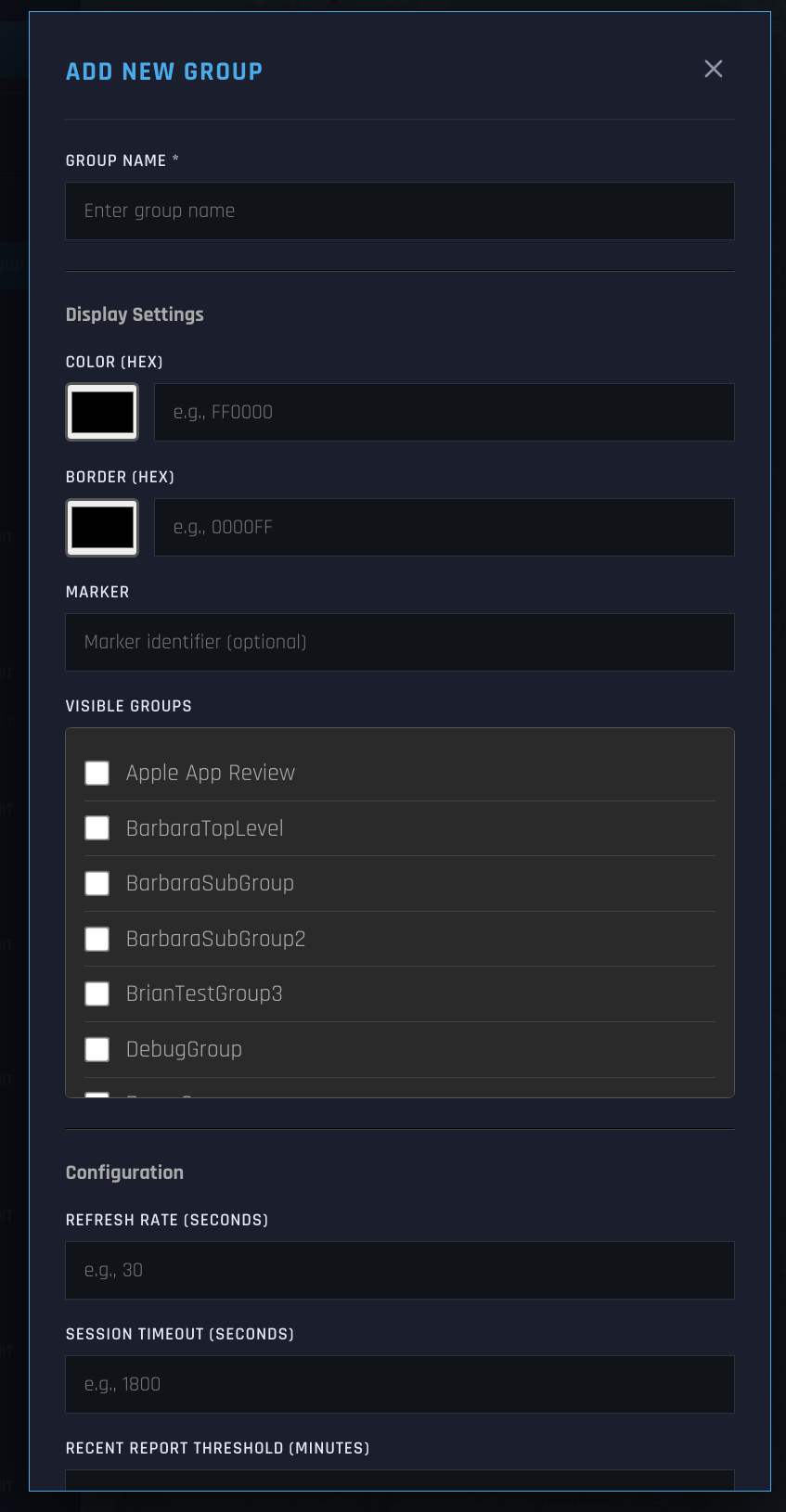
GovCIO COMMANDLINK add or edit primary group view
Use the enhanced color picker to set or update the group color.
Review group-level values such as refresh rate, session timeout, and recent report threshold when those settings are available for your role.
Save your changes.
User Management
Users are shown according to the logged-in administrator’s group hierarchy and permissions.
Open the administrative area and select Users.
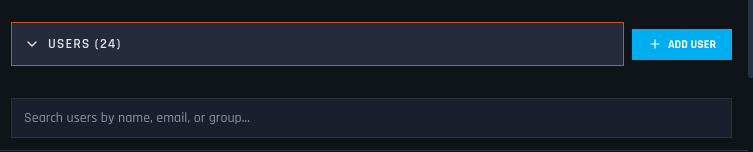
GovCIO COMMANDLINK user management options
Note
The Users section provides the following options:
Select the arrow next to Users to expand or collapse the section. The user list may disappear briefly while the system updates.
The number in parentheses is the number of users configured in the system that you have permission to view.
Select + ADD USER to create a user when permitted by your role.
Select the search bar and enter a user name to filter the list.
Add or edit a user as permitted by your role.
Update editable profile details such as first name, last name, phone, and other attributes when needed.
Passwords can be updated by users with administrative privileges.
Unlocking a locked user account is also possible with administrative privileges.
Unit Management
Units are shown according to the logged-in administrator’s group hierarchy and permissions.
Open the Admin area and select Primary Groups.
Select the primary group to which the unit belongs.
Add or edit a unit as permitted by your role.
Assign the unit to the correct group.
Save your changes.
Live Activity Log
The live activity log is an optional feature that may be enabled for your environment. It provides a real-time view of system events, including alerts, geofence activity, and user actions.
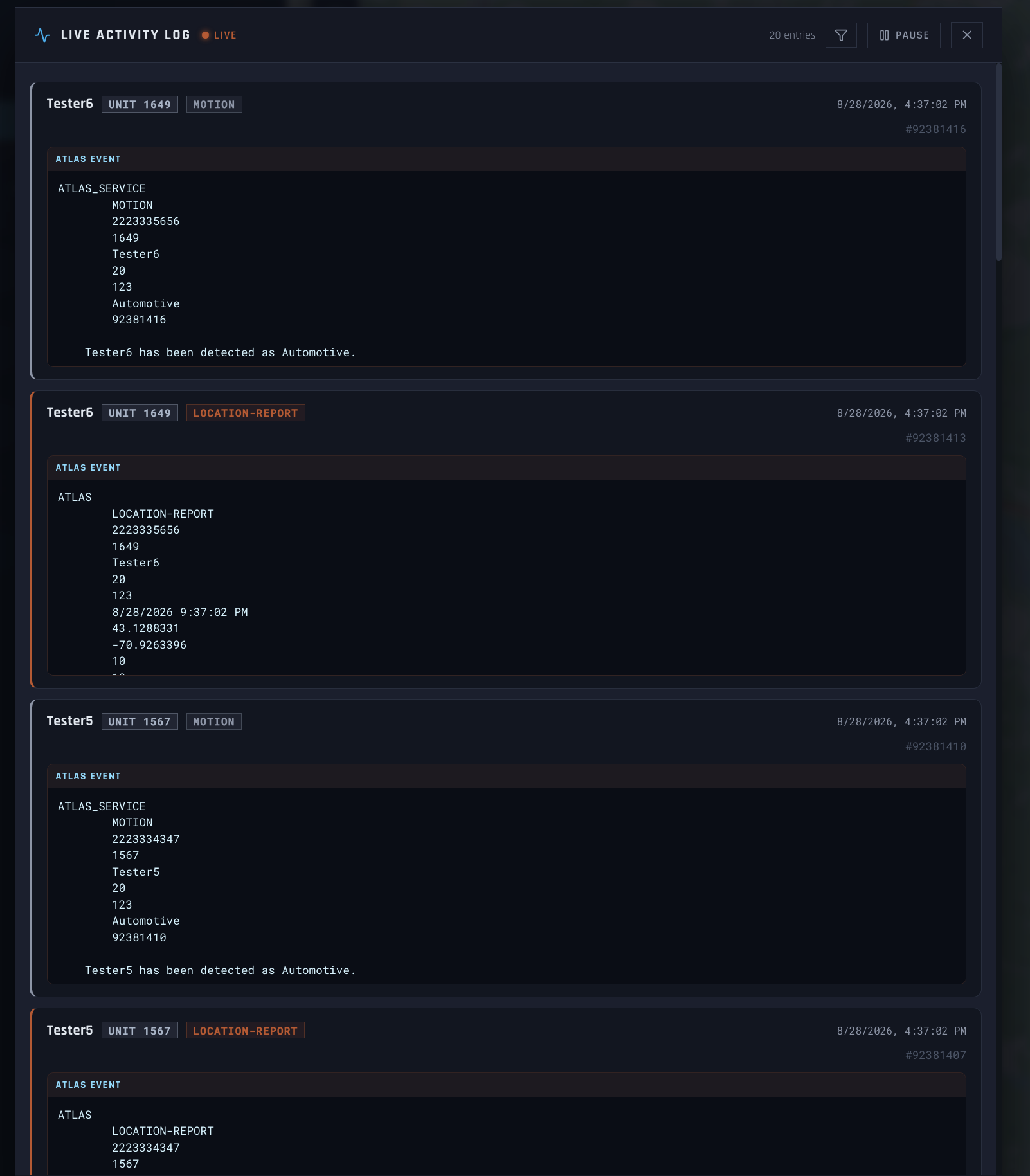
GovCIO COMMANDLINK live activity log view
Live Activity Log Filters
The Live Activity Log includes an Activity Type filter for more granular event tracking.
Open the Live Activity Log.
Select the Activity Type filter and choose one or more activity types to narrow the results.
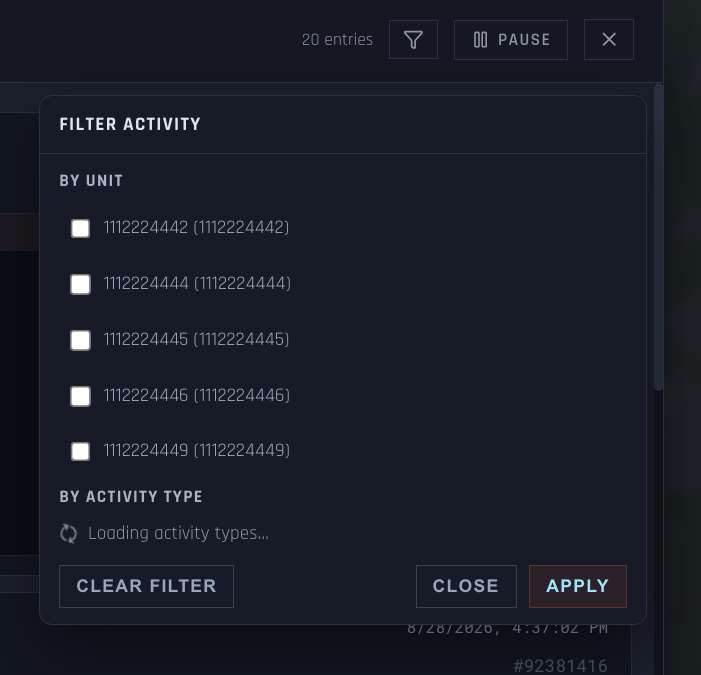
GovCIO COMMANDLINK activity type filter selection view
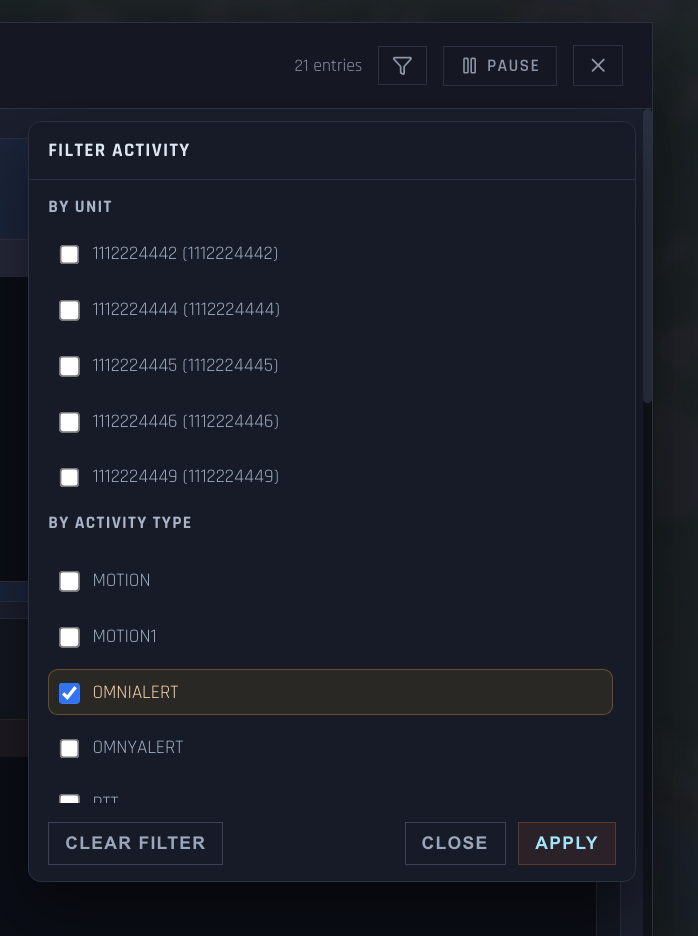
GovCIO COMMANDLINK activity type filter with OMNIALERT selected
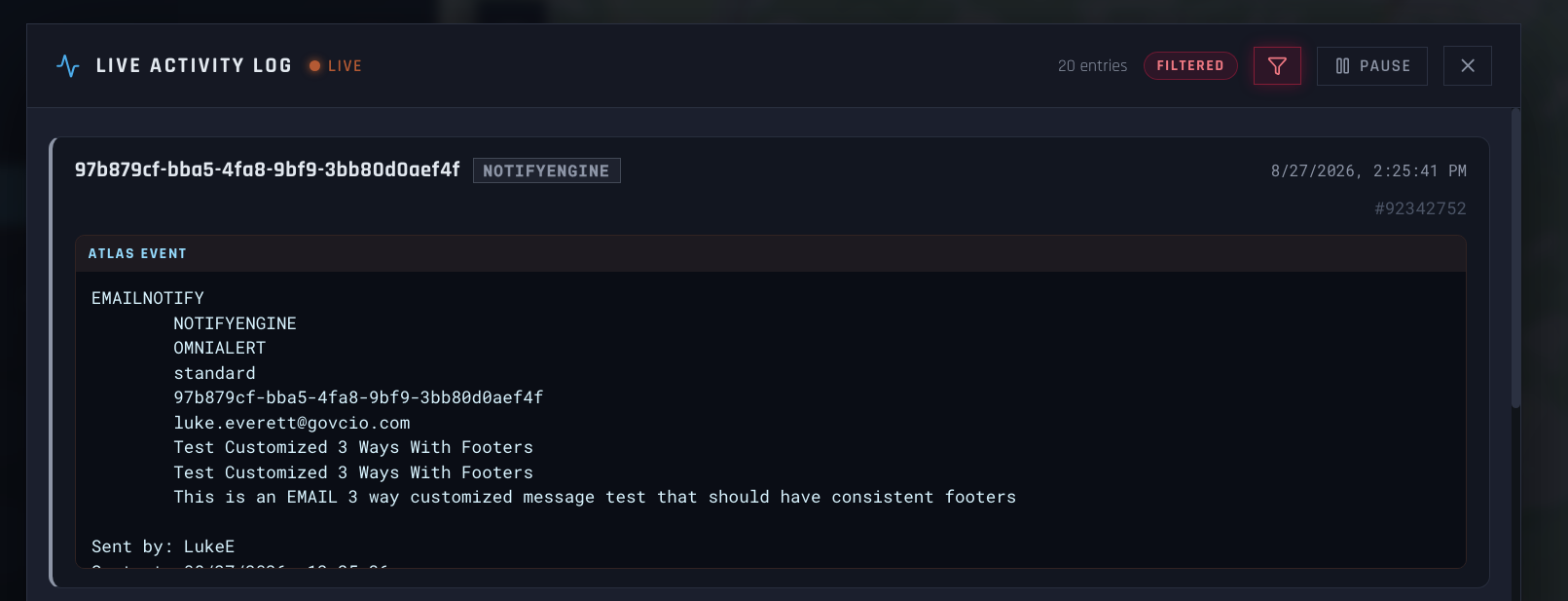
GovCIO COMMANDLINK filtered live activity log results view
When activity types are loading, wait for the loading indicator to complete before applying additional filter changes.