iOS Sign-In and Registration
Use this page for the updated GovCIO COMMANDLINK account sign-in process. This flow replaces the previous Device ID-only registration with username, password, and required multi-factor authentication (MFA).
Before you begin
Have the following available:
Your GovCIO COMMANDLINK Mobile username and password
Your existing Device ID
An authenticator app, such as Microsoft Authenticator, Google Authenticator, or another compatible app
Set up GovCIO COMMANDLINK
Screens and prompts can vary by iOS version.
Install or update GovCIO COMMANDLINK from the App Store, then open the app. The new account sign-in process will not appear until you install or update to the latest version of GovCIO COMMANDLINK. Open your device’s app store and install GovCIO COMMANDLINK or select Update if the app is already installed. After the installation or update is complete, open the app and continue with the steps below. If you still see only the previous Device ID registration process, return to your device’s app store and confirm that the latest version has finished installing.
Respond to permission requests.
GovCIO COMMANDLINK Mobile may request access to location, camera, motion or physical activity, microphone, and notifications.
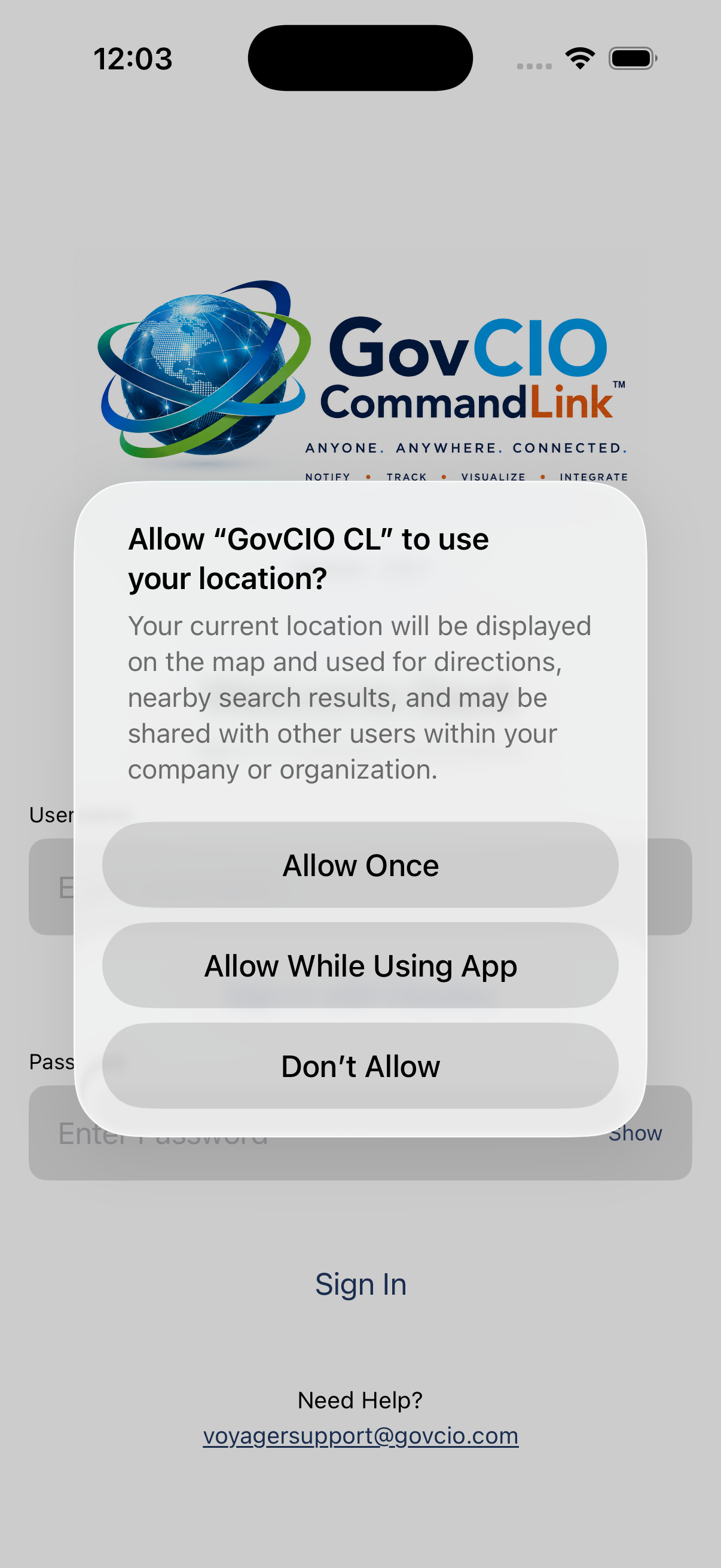
iOS location permission prompt on first sign-in
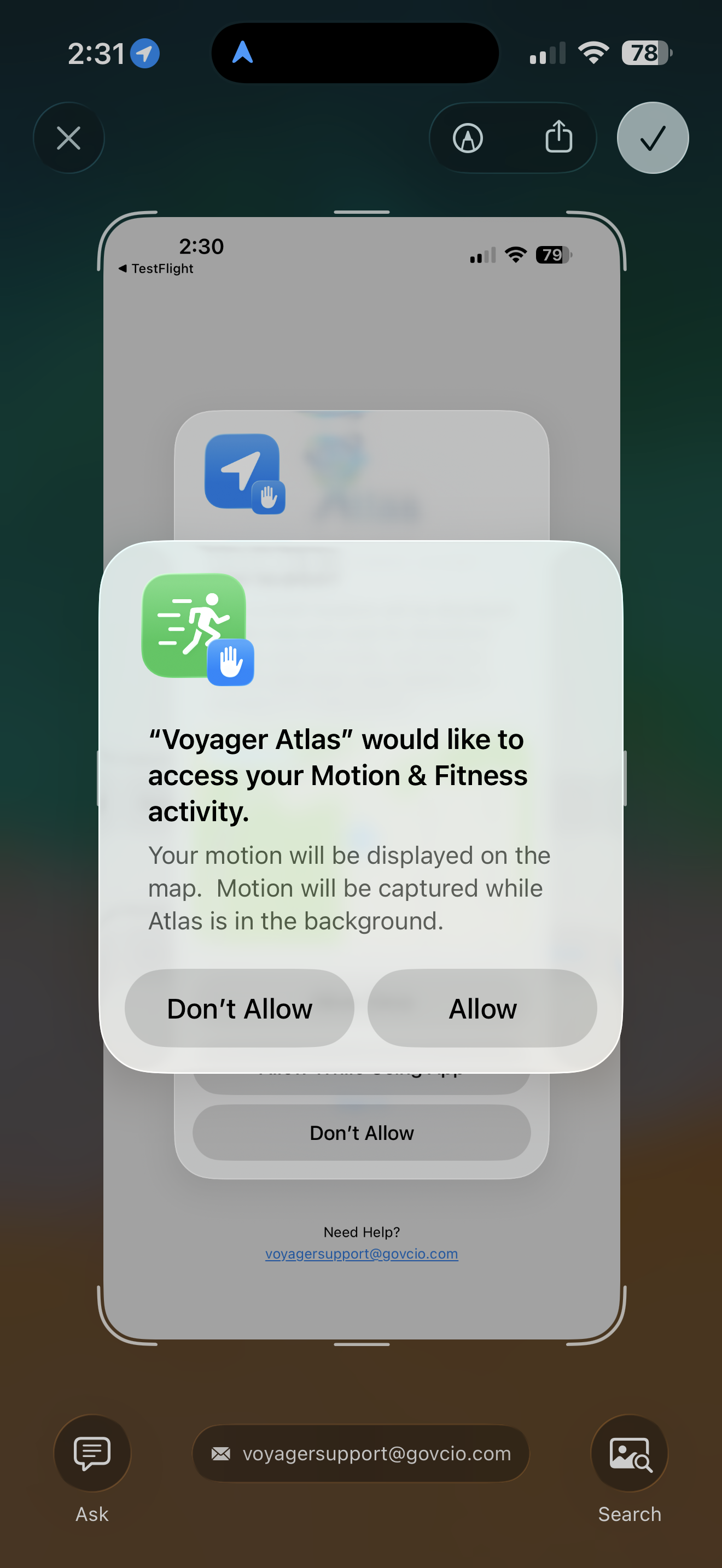
iOS motion and fitness permission prompt
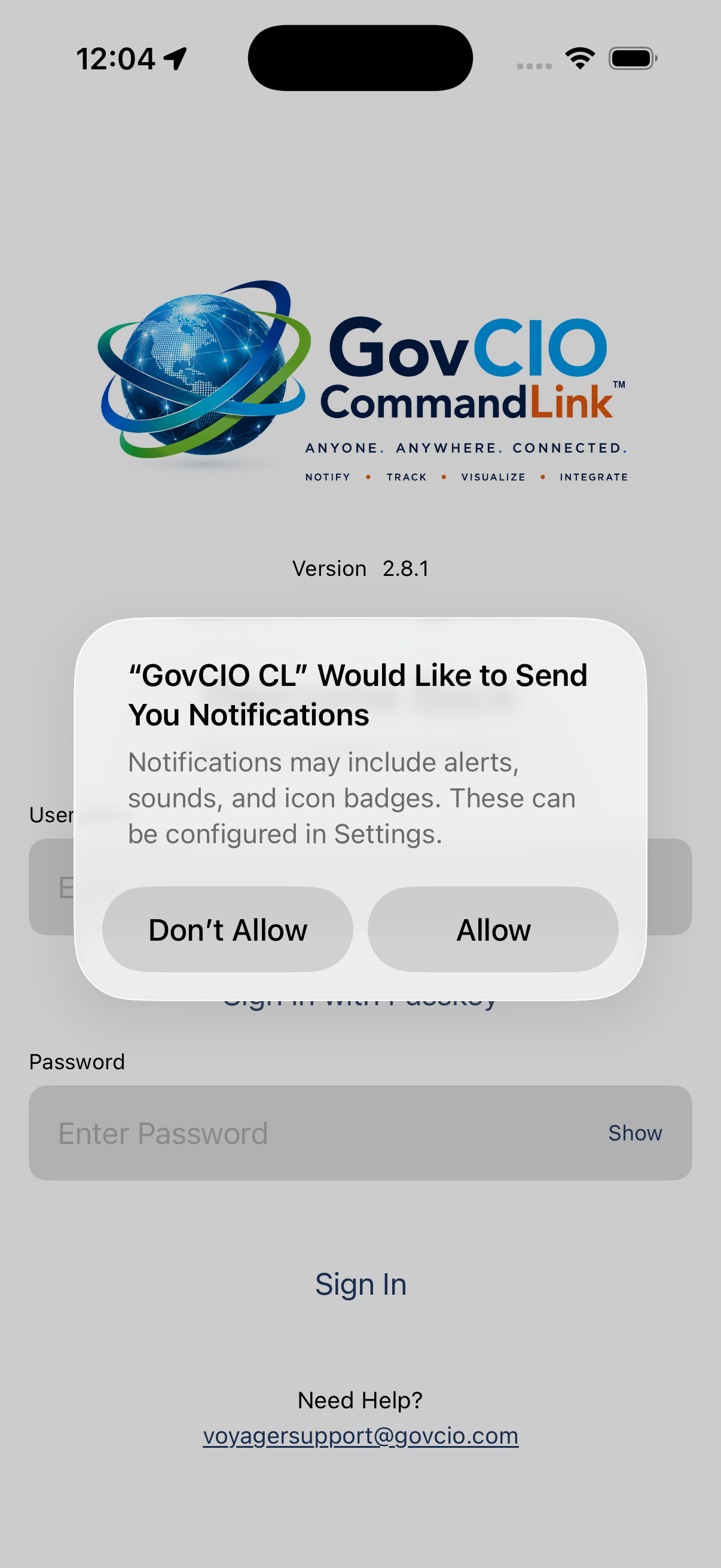
iOS notifications permission prompt
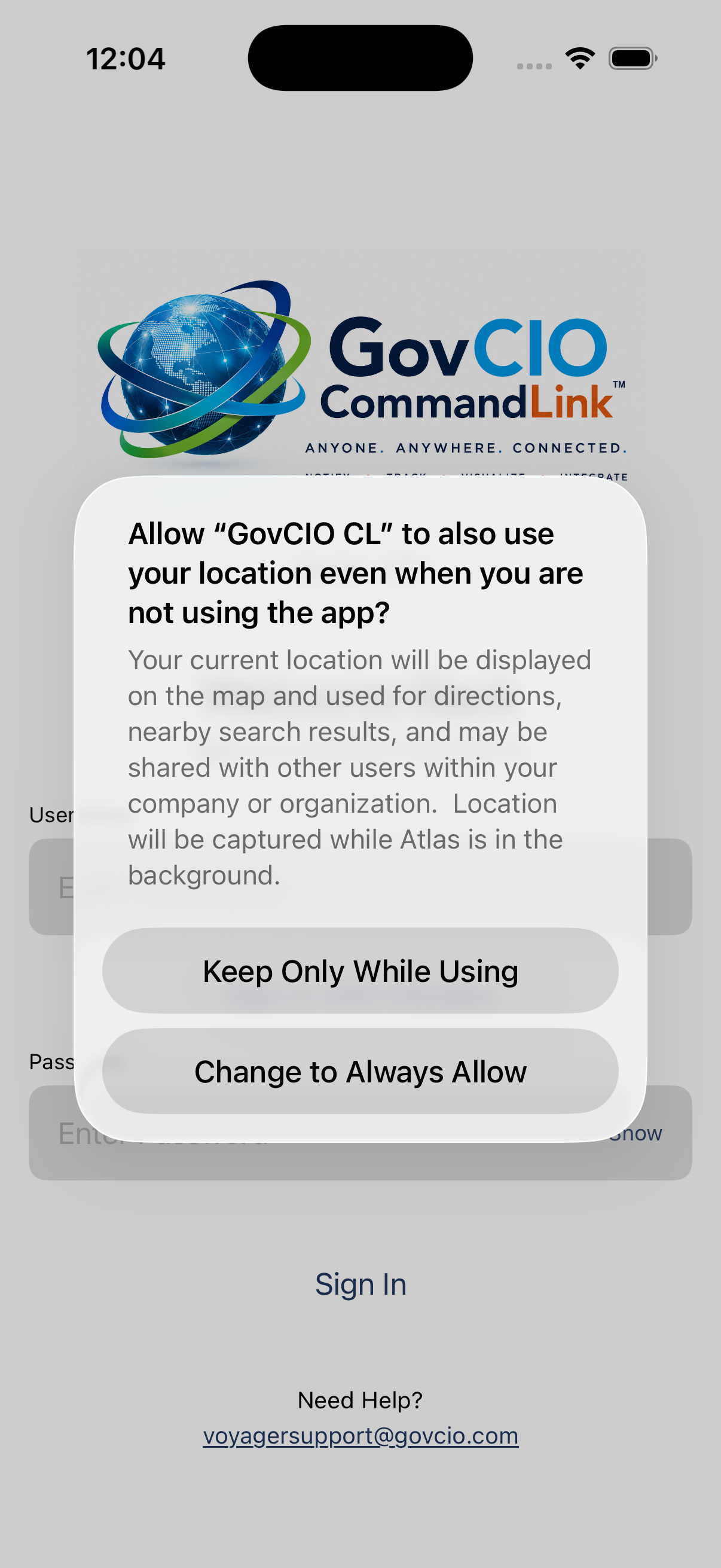
iOS Location permission prompt
Sign in.
Enter the username and password from your credentials email, then select Sign In.
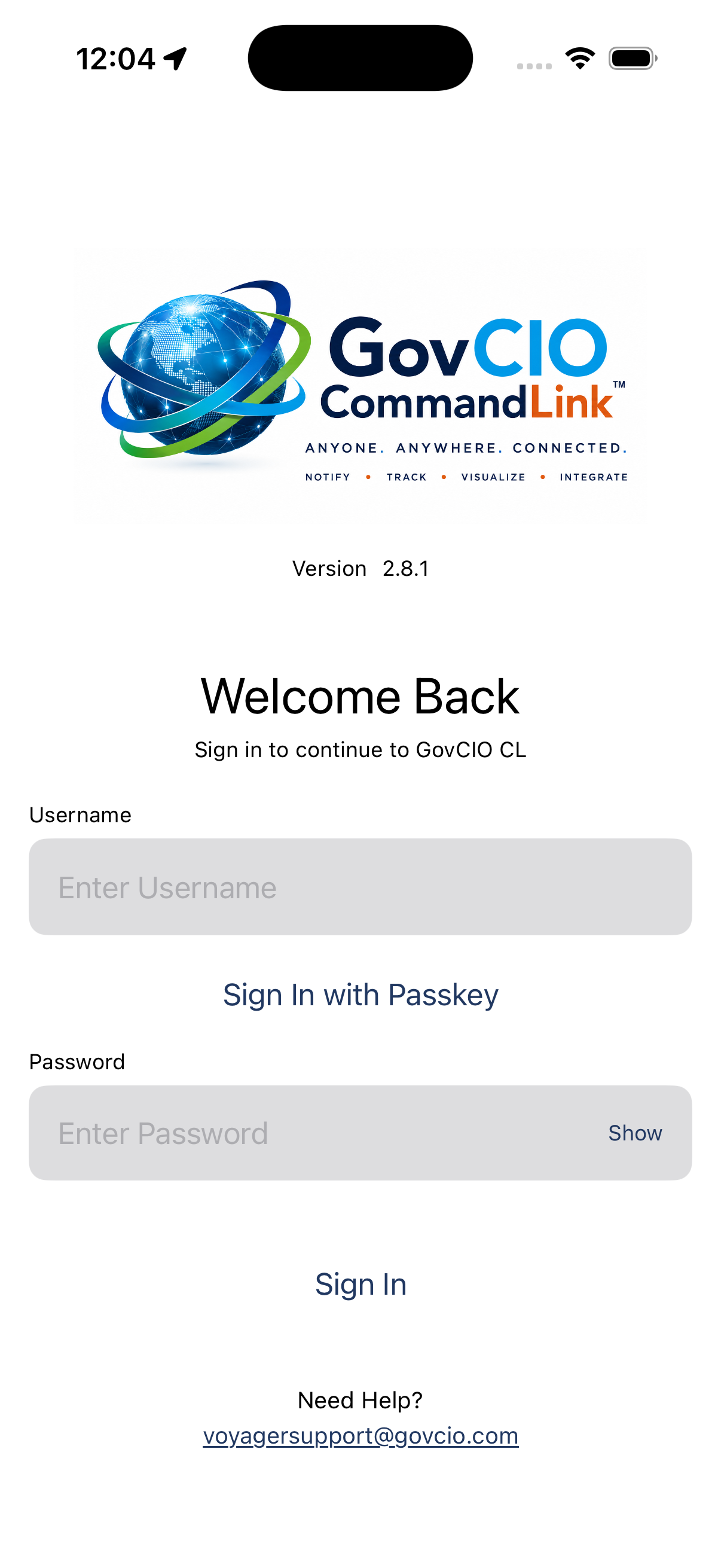
Welcome Back sign-in screen
Set up multi-factor authentication.
Open your authenticator app and add a new account.
Scan the QR code displayed by GovCIO COMMANDLINK.
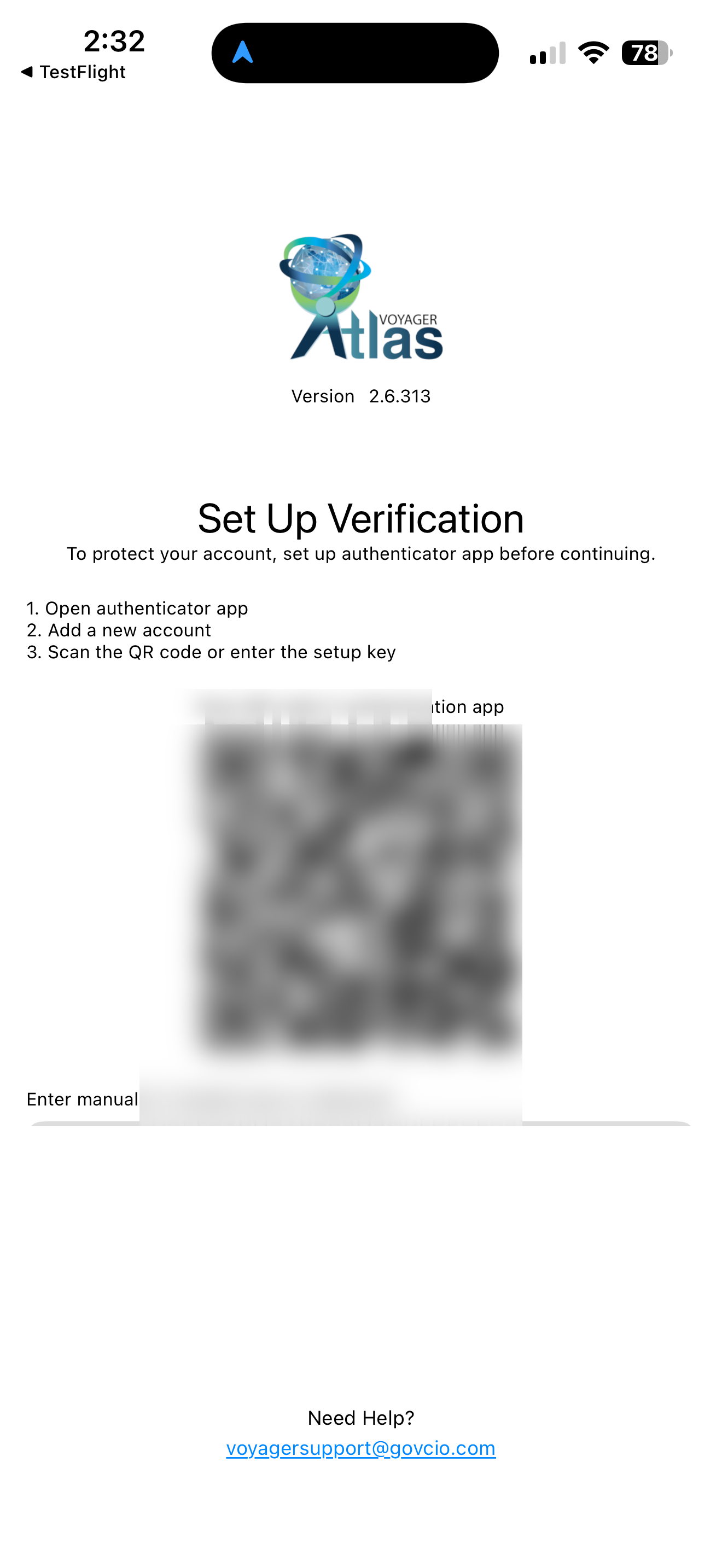
Set Up Verification screen with QR code and manual key
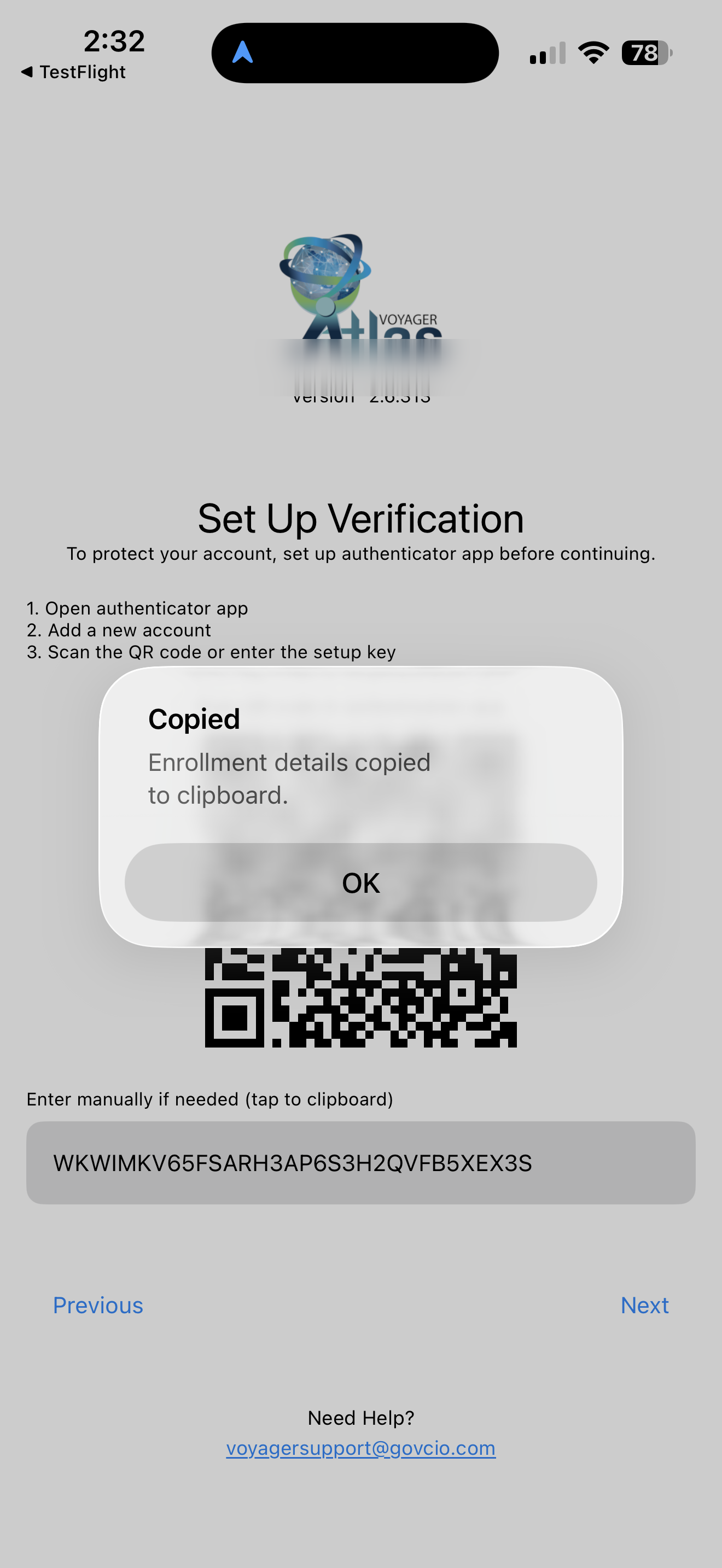
Enrollment details copied confirmation
If you are setting up the authenticator on the same phone, enter the manual setup key instead.
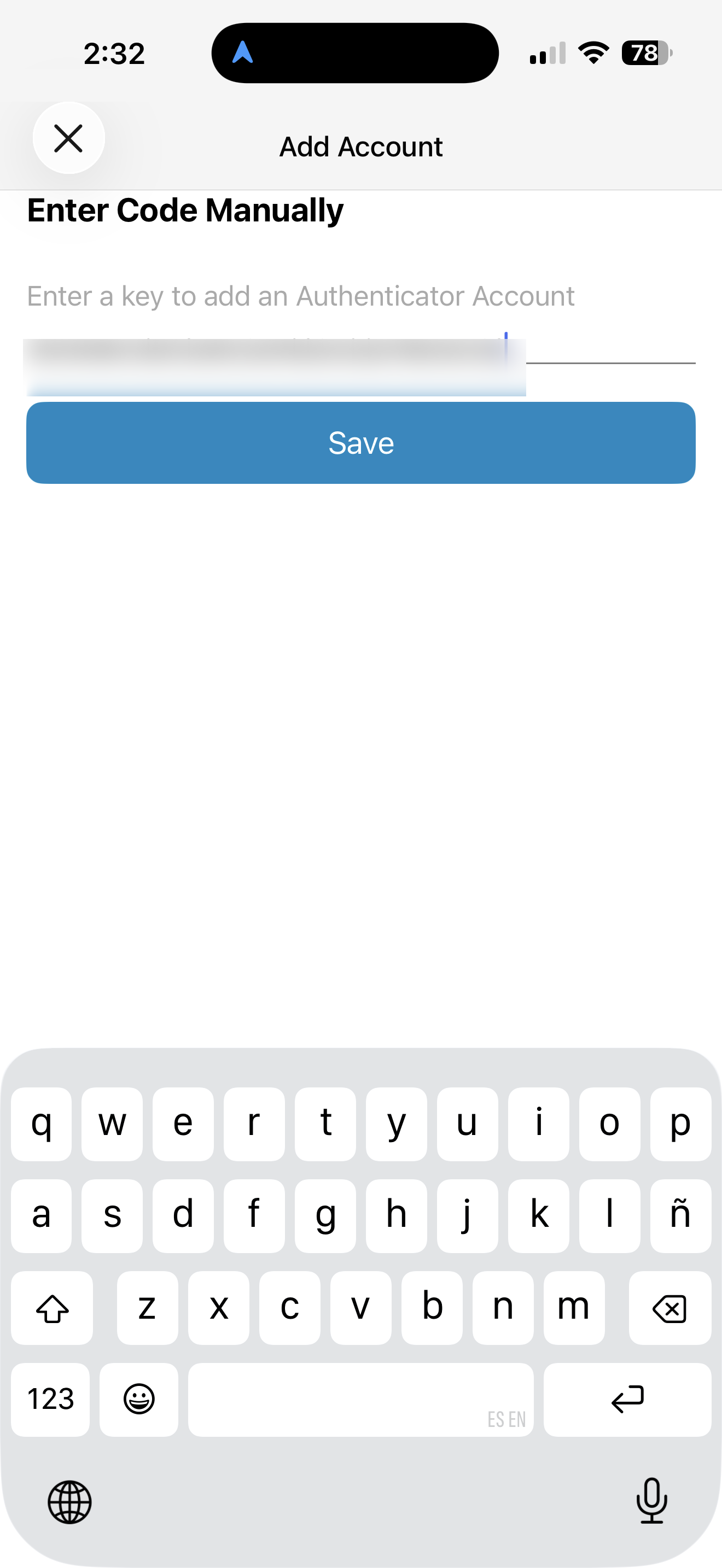
Authenticator app manual key entry
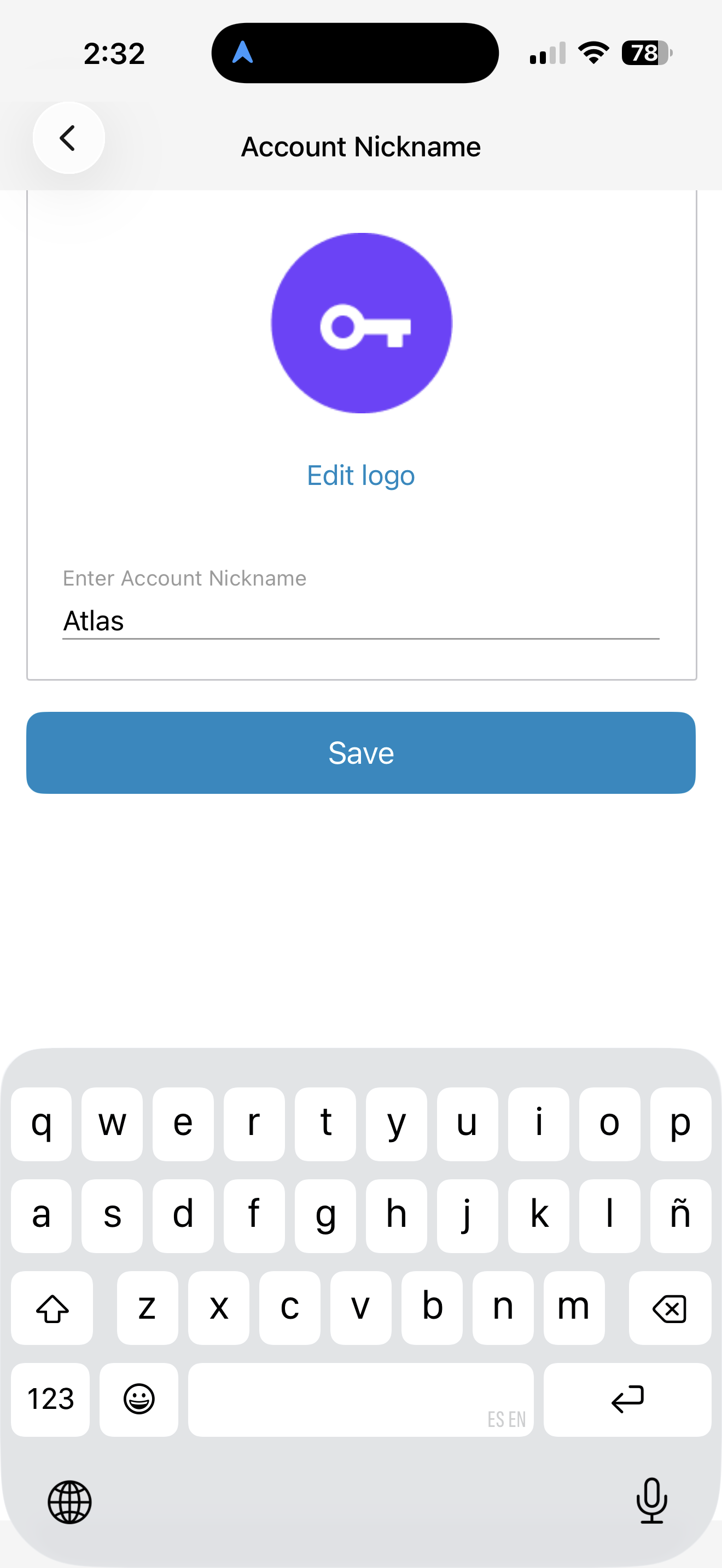
Optional authenticator account nickname entry
Return to GovCIO COMMANDLINK and select Next.
Enter the six-digit verification code from your authenticator app.
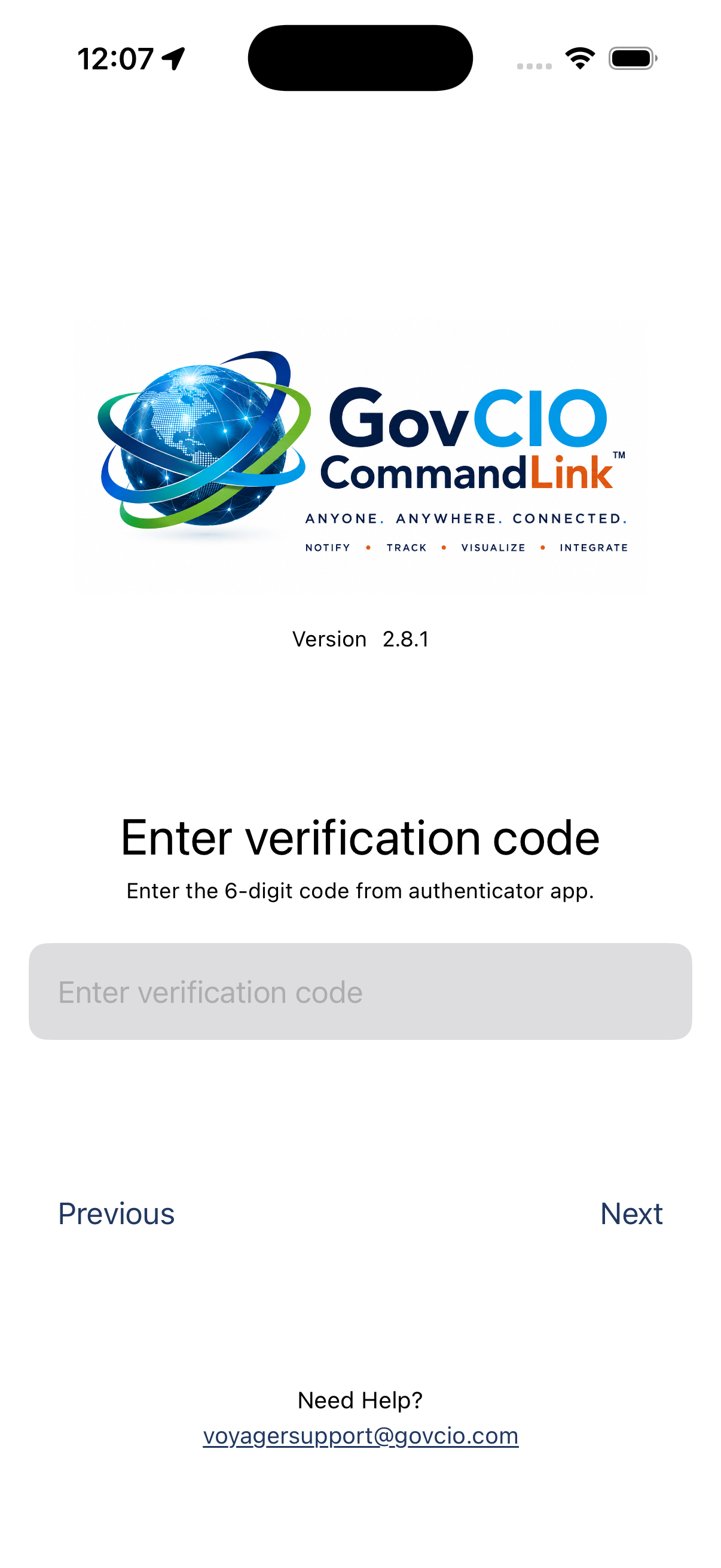
Enter 6-digit verification code screen
Confirm the verification code, then select Next.
Warning
Never share or send anyone a screenshot of your QR code, enrollment URL, manual setup key, or verification code.
Choose whether to create a passkey.
Passkey setup is optional. A passkey allows sign-in using Face ID, Touch ID, device PIN, or screen lock instead of entering a password.
To create a passkey, leave Enable Passkey turned on, select Next, and follow device prompts.
To skip passkey setup, turn Enable Passkey off and select Next.
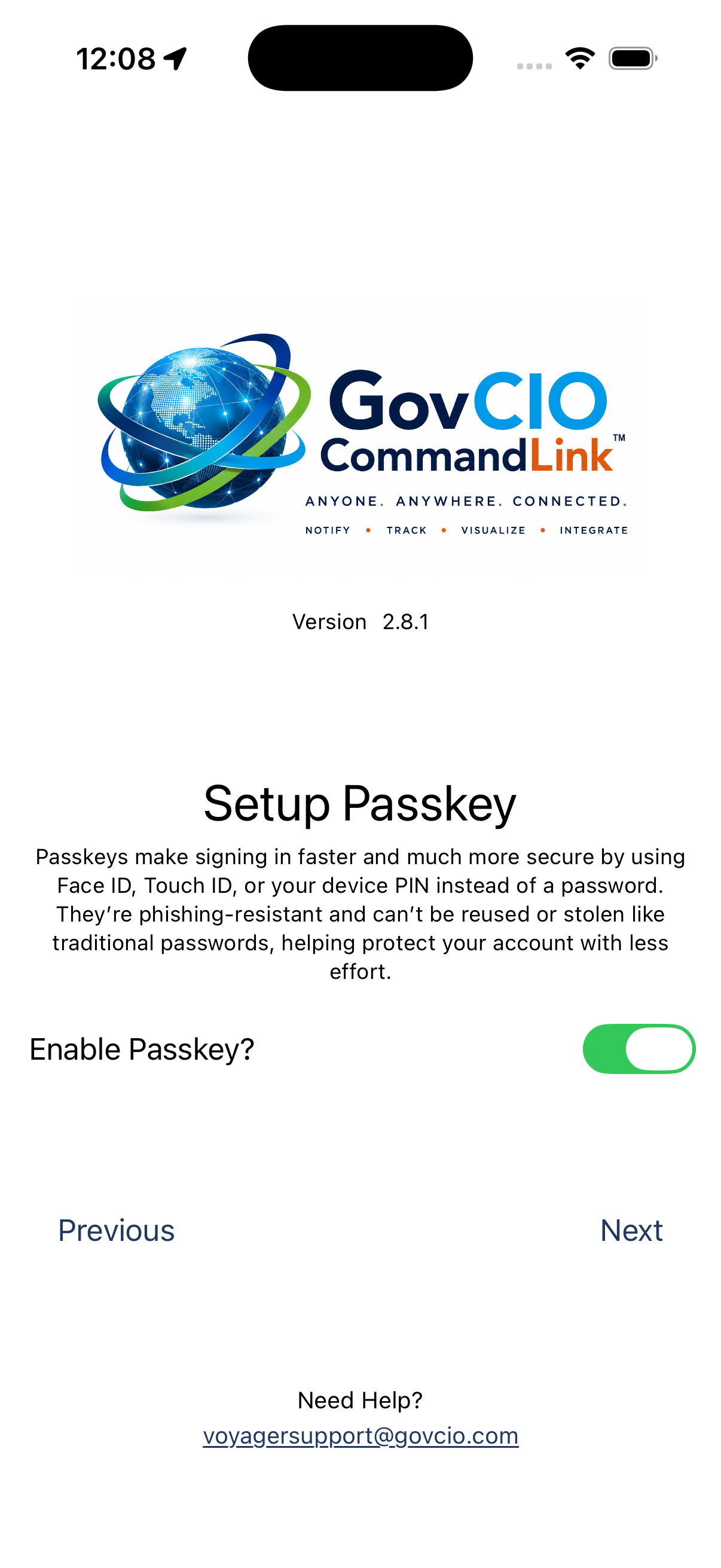
Setup Passkey option screen
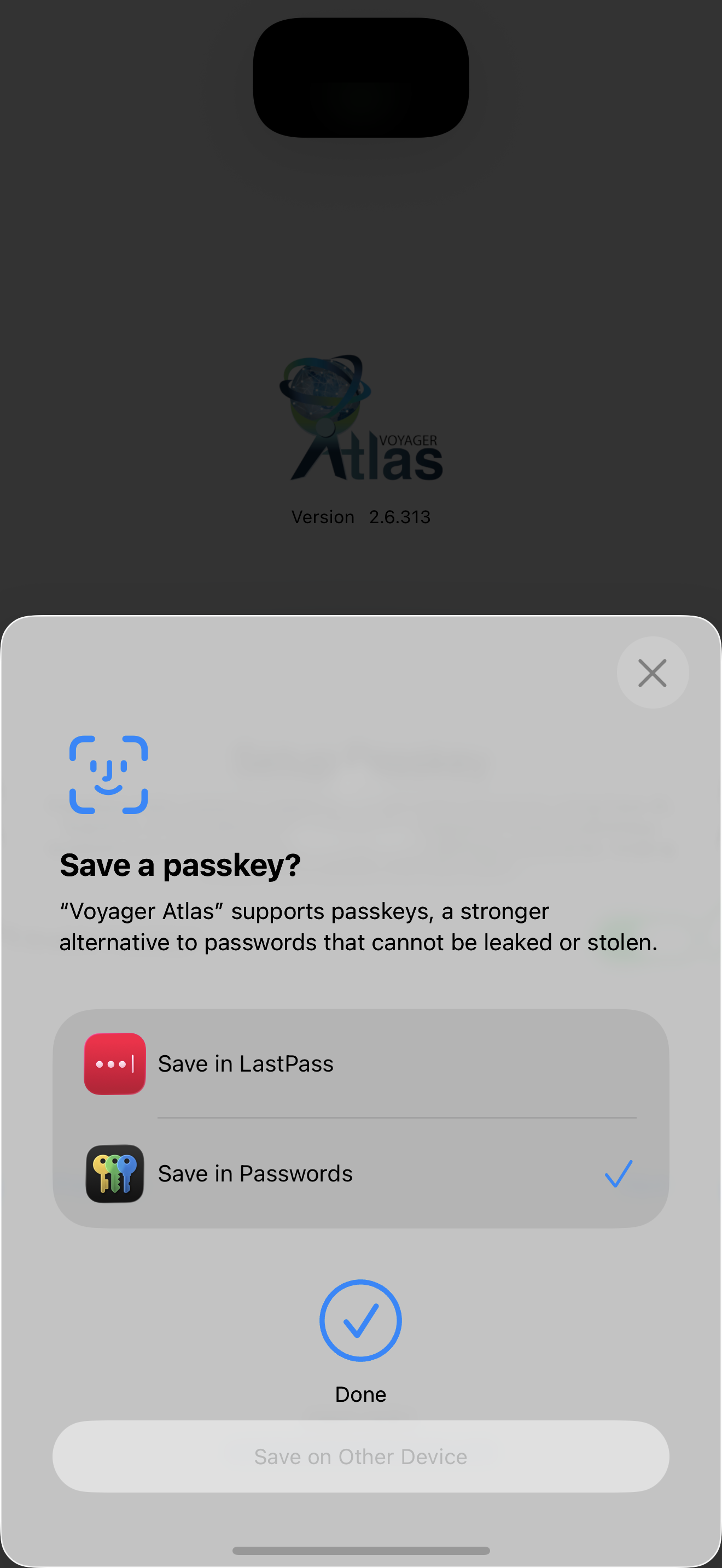
iOS passkey save destination prompt
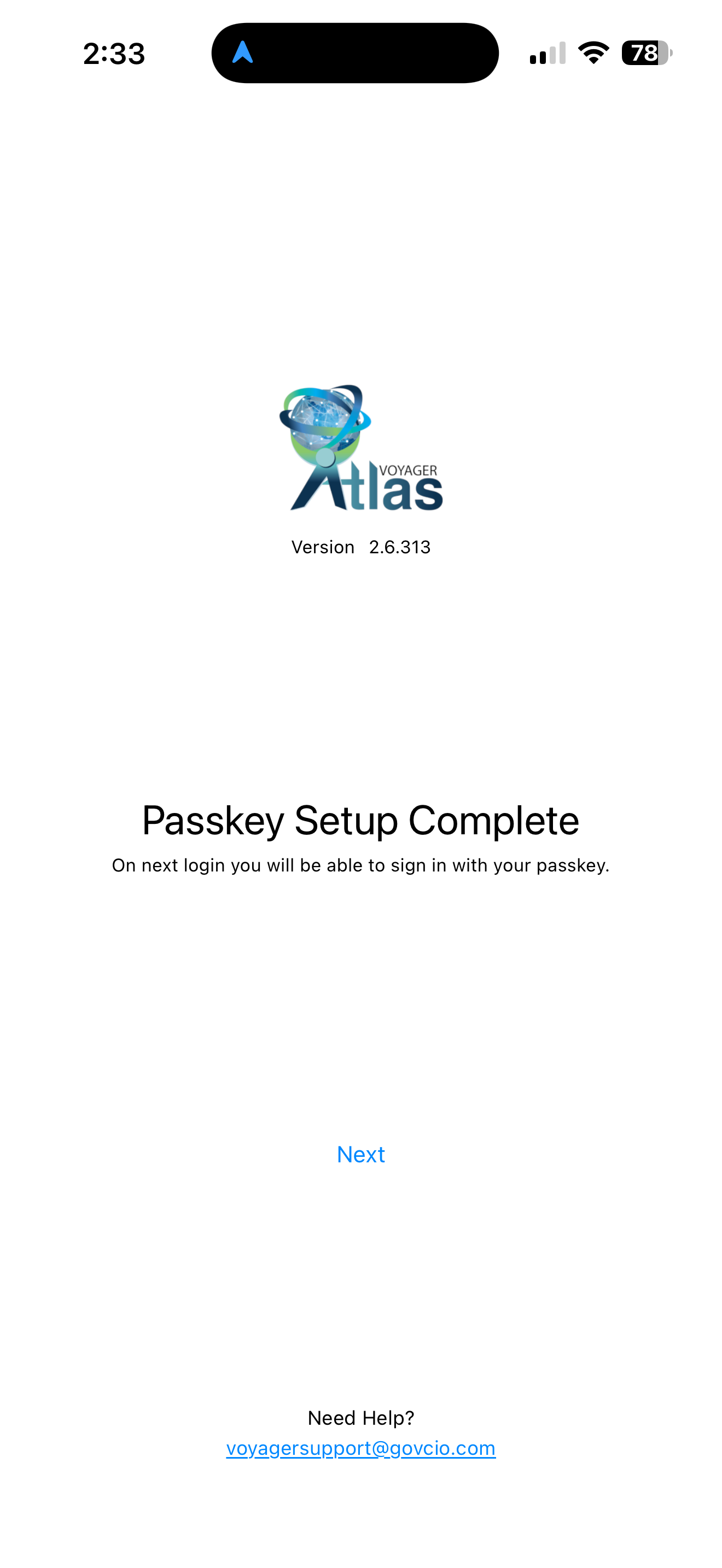
Passkey Setup Complete confirmation
Register your device.
Enter your existing Device ID and select Register Device to complete setup.
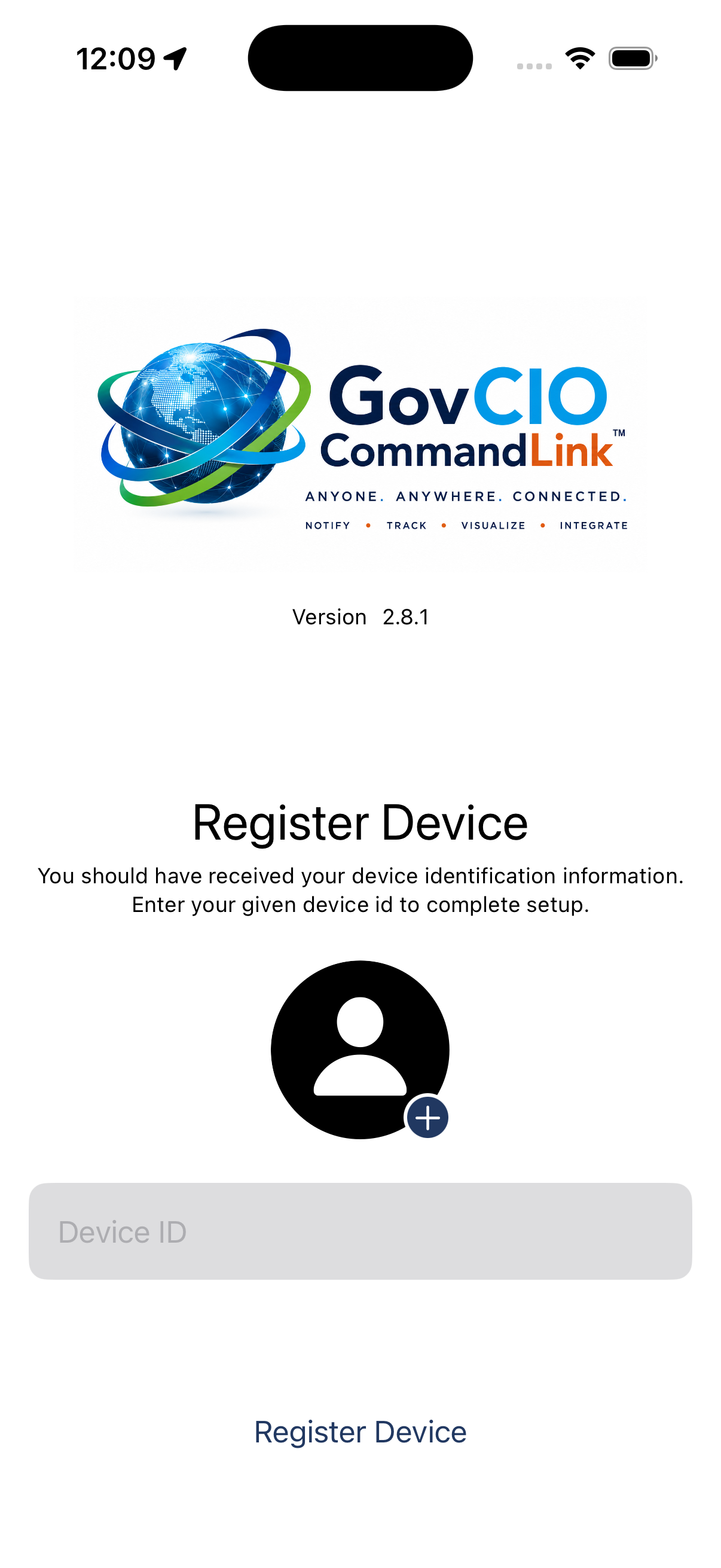
Register Device screen for existing Device ID
Passkey notes
Your passkey may be saved in Apple Passwords or another password manager available on your device. Follow the prompts and authenticate with Face ID, Touch ID, or your device passcode.
Future sign-ins
If you created a passkey, select Sign In with Passkey on the GovCIO COMMANDLINK Mobile login screen. You may still use your username and password when needed.