iOS Menu Bar
The GovCIO COMMANDLINK Mobile v2 app uses a menu bar across the top of the app. Each section below provides additional detail on the menu options.
User Status
Your status tells your team:
Whether they can see you on the map
Whether your device is sharing its location
Whether your radio (PTT) channel is open
You can change your status at any time.
The system ships with three default statuses:
Available
Out of Office
On Break
All statuses can be modified and new statuses can be added.
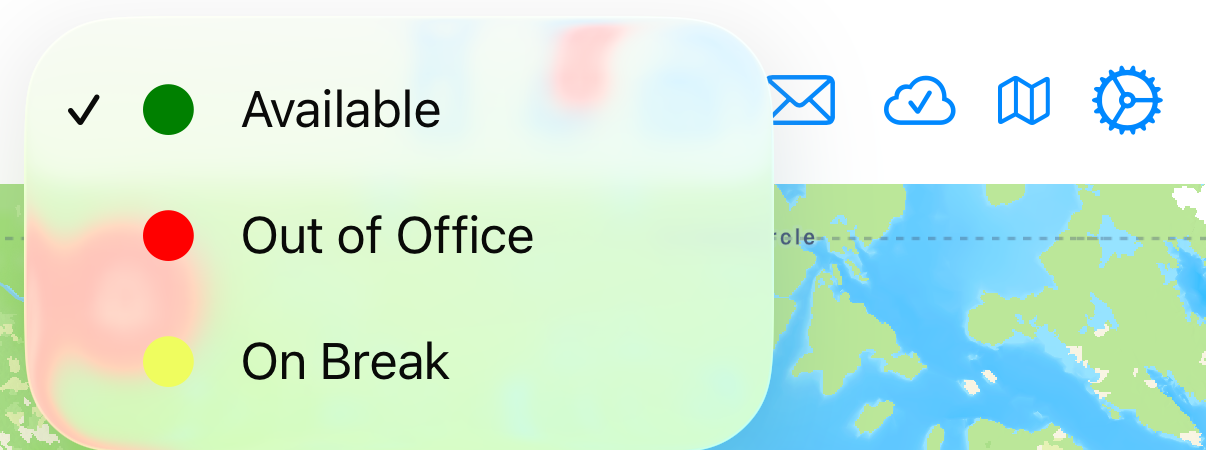
Menu Bar - Status
Available

Menu Bar - Location Sharing On - Available
- What it means:
You are on duty and active.
- What others see:
You appear on the map normally, updating your position as you move.
How your device behaves:
Sends location
Shares your location with others
PTT channel is open
Uses the standard channel
Shown in green
Use this when you’re working and reachable.
Out of Office

Menu Bar - Location Sharing Off - Out of Office
- What it means:
You are not working and should not be contacted.
- What others see:
You will appear with a red bar for a set amount of time (currently 10 minutes configurable by your administrator). After this time, you will not appear on the map.
How your device behaves:
Does not send location
Does not share location
PTT channel is not open
Shown in red
Use this for incognito use, vacation, personal time, sick days, etc.
On Break

Menu Bar - Location Sharing Off - On Break
- What it means:
You are temporarily unavailable, but still listening. You are able to view other users’ locations and live activities on the map.
- What others see:
You appear on the map with an indicator showing your location is not updating.
How your device behaves:
Does not send location
Does not share location
PTT channel stays open so you can listen
Shown in yellow
Use this for lunch, short breaks, or times when you’re away from your vehicle or workstation but still monitoring live activities and radio traffic.
Once you enter On Break, your avatar’s last position will be available on the map for a configurable amount of time. The default setting is 10 minutes.
Note
An Administrator must configure the avatar time out.
Unit Listing
Use the Units menu option to view active units.

Menu Bar - Units
Tap the menu option to open the Units view.
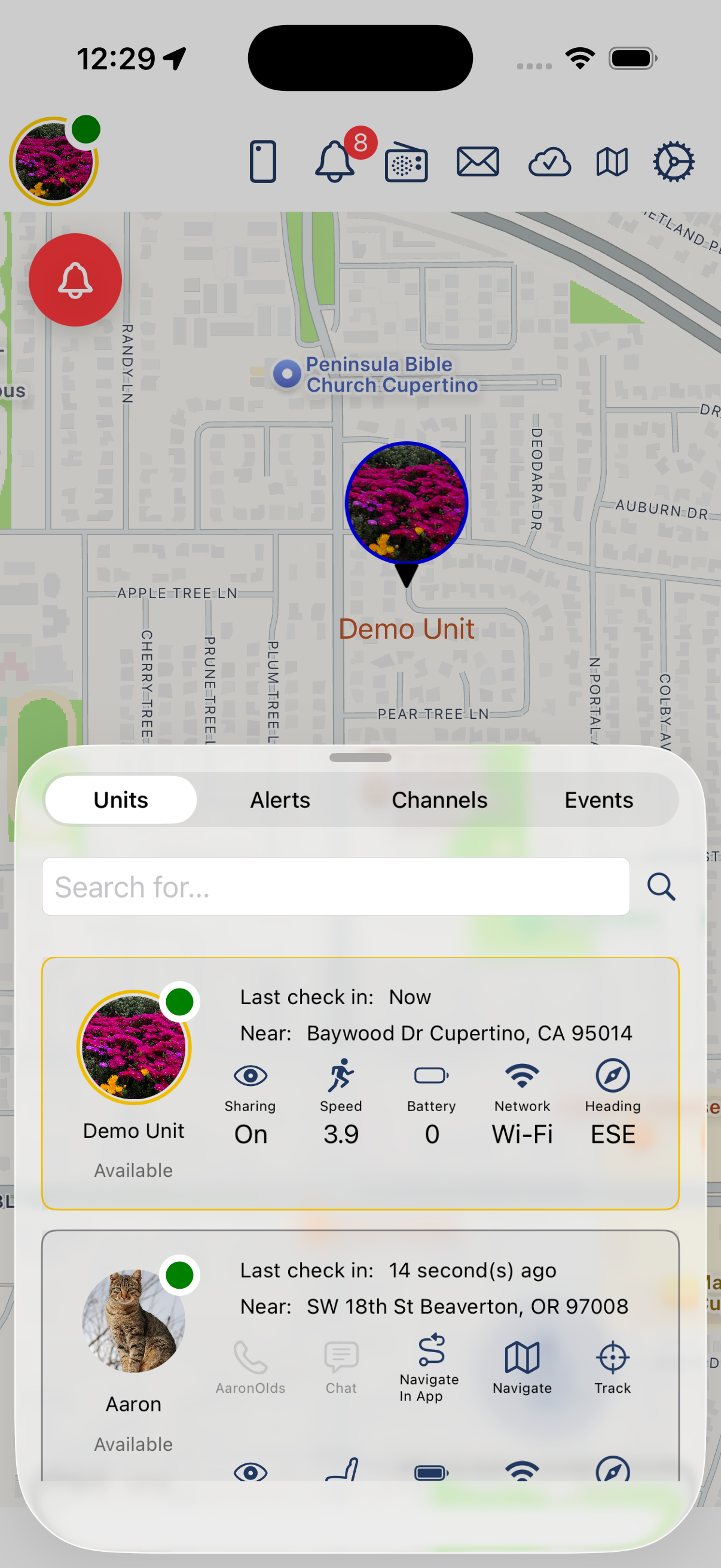
Units View
Alerts and Notifications
Use the alerts and notifications menu option to view alerts and notifications.
Menu Bar - Alerts and Notifications
Tap the menu option to open the Alerts view.
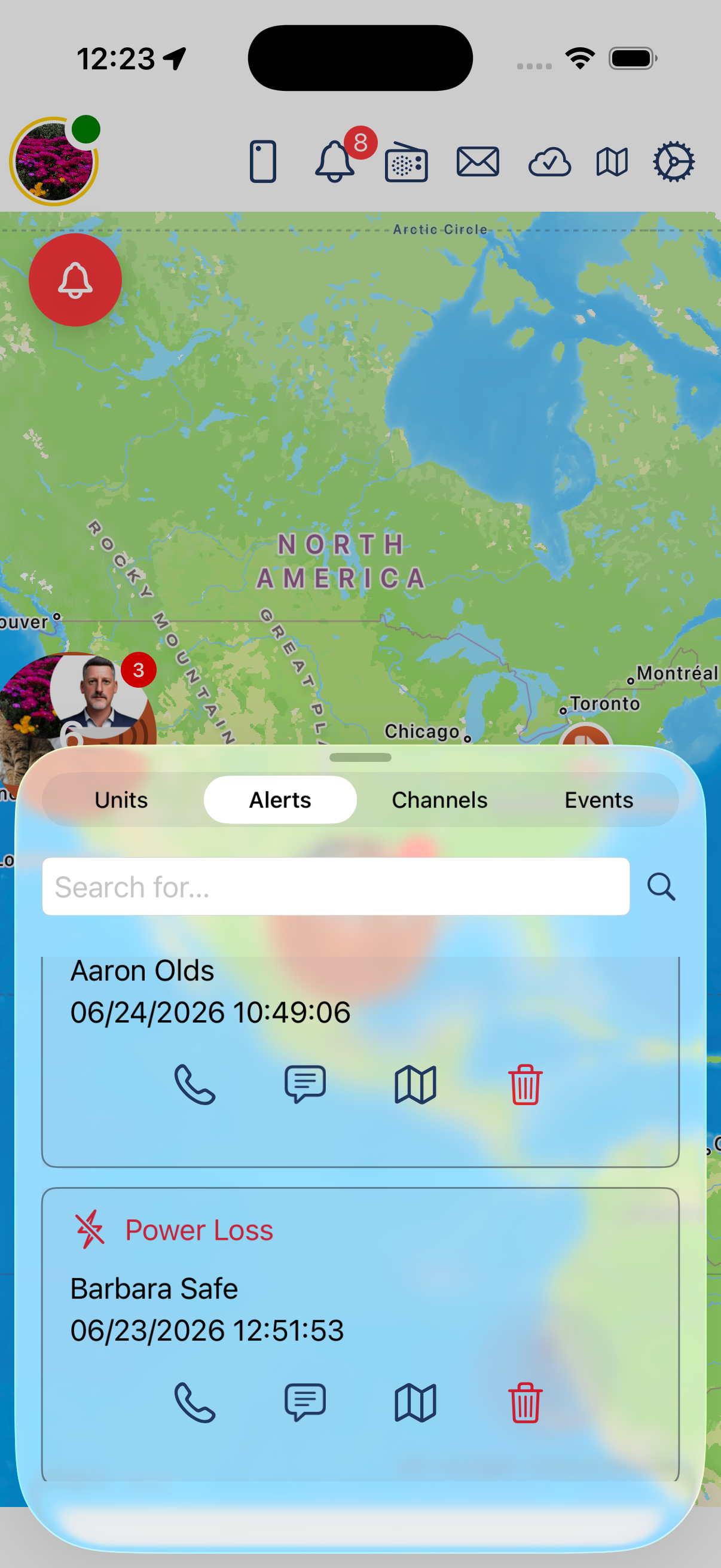
Alerts View
Channels - PTT
Use the Channels menu option to view push-to-talk (PTT) channels.

Menu Bar - Channels
Tap the menu option to open the Push to Talk Channels view.
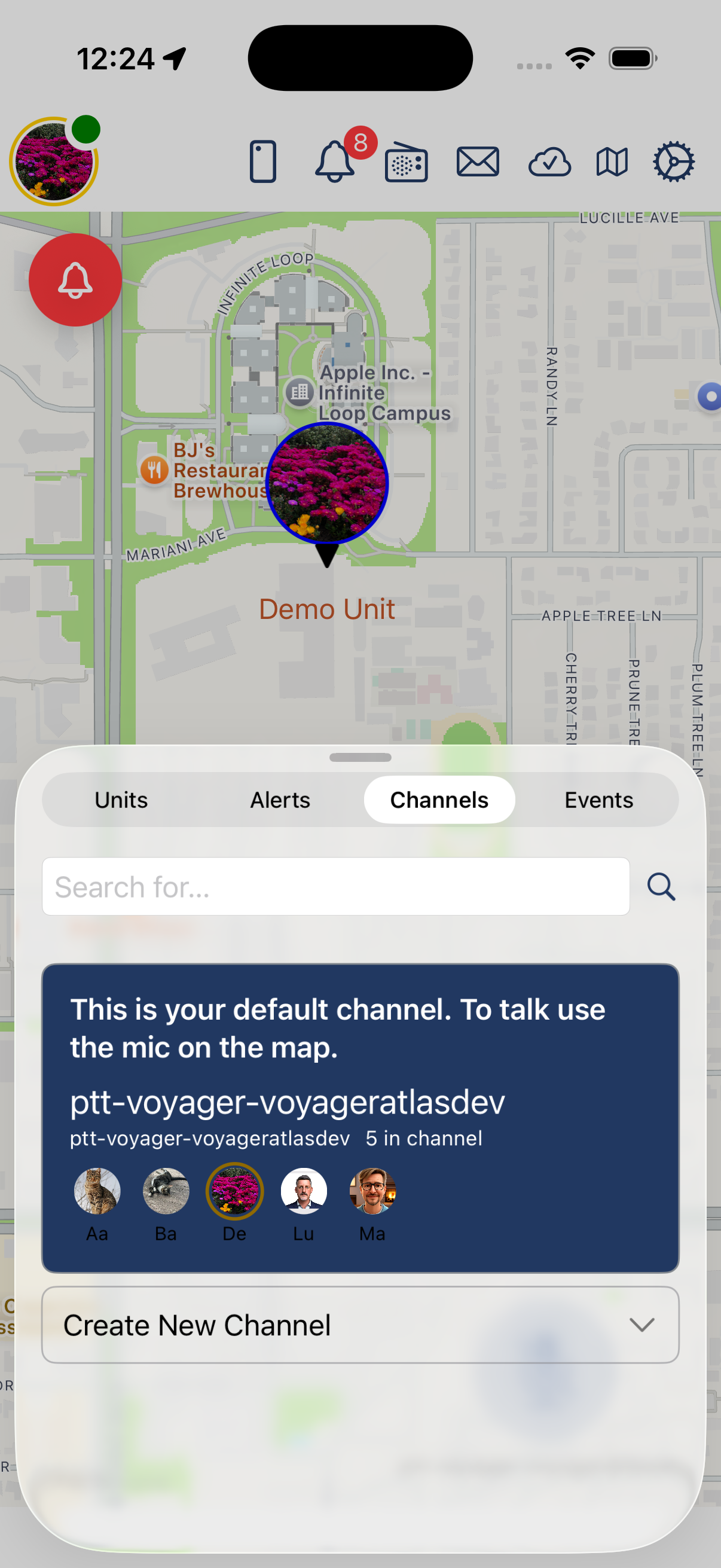
Push to Talk Channels View
Event Listing
Use the Events menu option to view app and server communication records.

Menu Bar - Events
The Events view shows message details for records sent and received between the device and the server. This is useful for troubleshooting sync issues and understanding the flow of data between the device and the server.
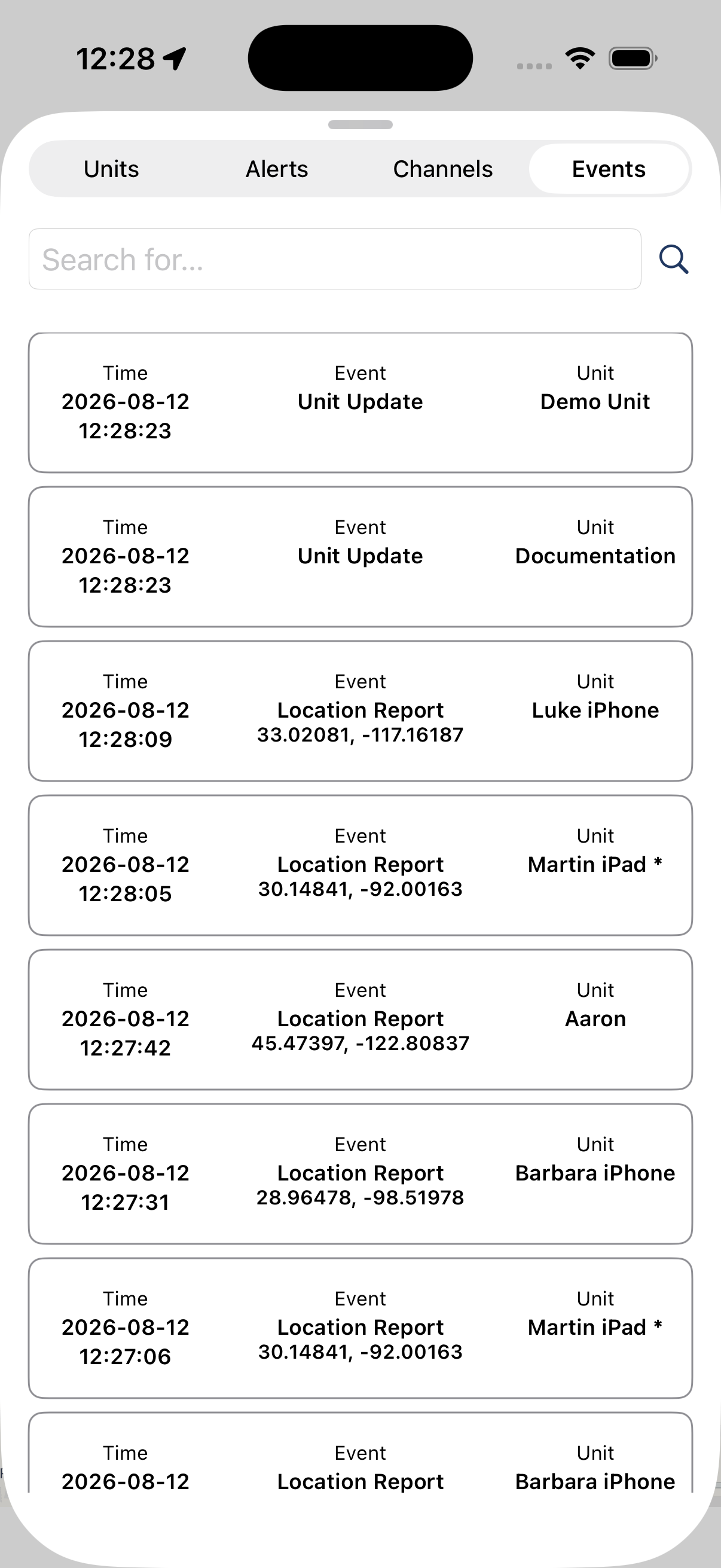
Events View
COMMANDLINK Server Status
The status of the connection to the GovCIO COMMANDLINK Server can be seen via the cloud icon in the menu bar. This icon will animate as position updates are sent and received.

Menu Bar - Network Status
If network connectivity is lost, the icon will display a count of records. When network connectivity is restored, these messages will automatically be sent to the server.
Toggle Map Layers
Map layers can be toggled off and on by the user.

Menu Bar - Map Layer Toggle
Toggle Traffic
Traffic patterns can be toggled off and on by the user.
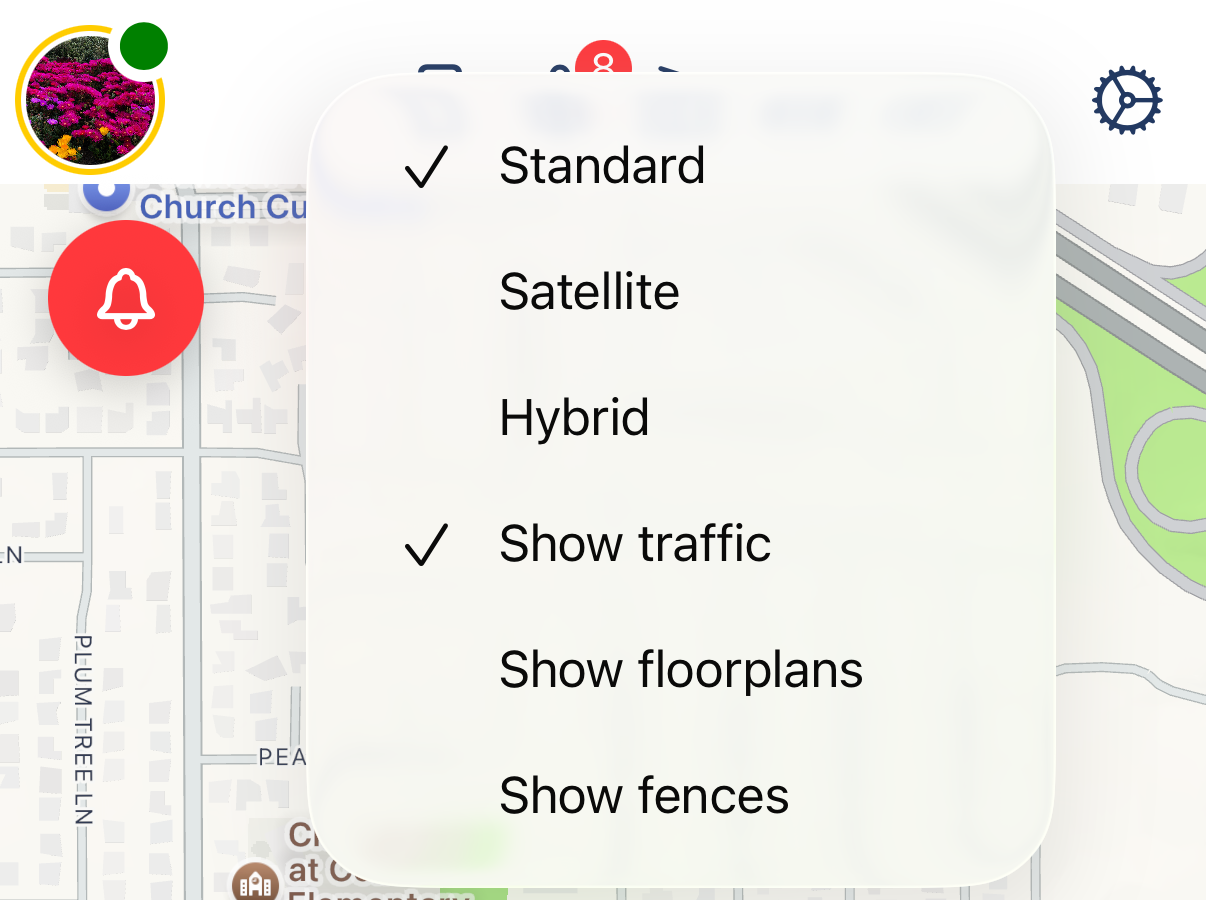
Menu Bar - Traffic Toggle
Toggle Floorplans
Floorplans can be toggled off and on by the user.
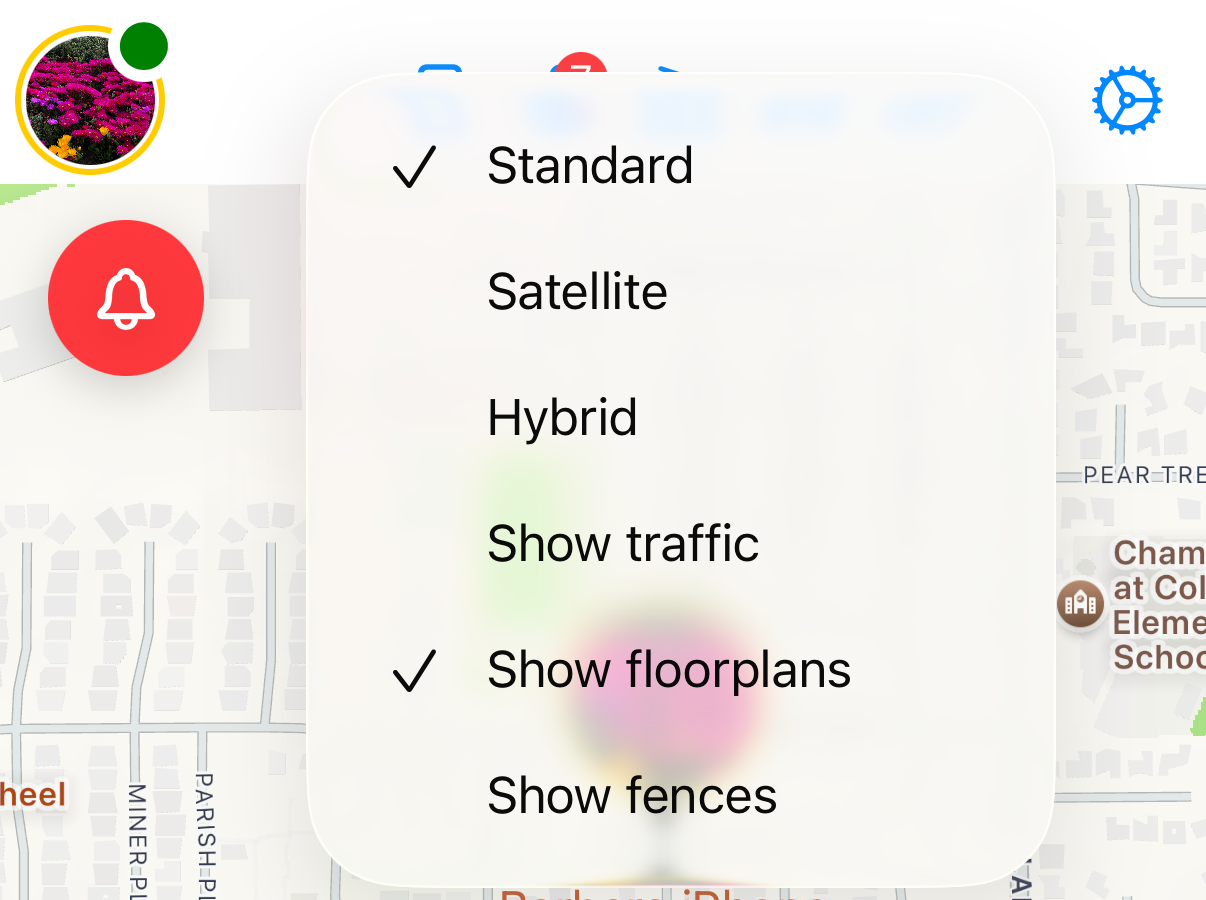
Menu Bar - Floorplans
Toggle Geofences
Geofences can be toggled off and on by the user.
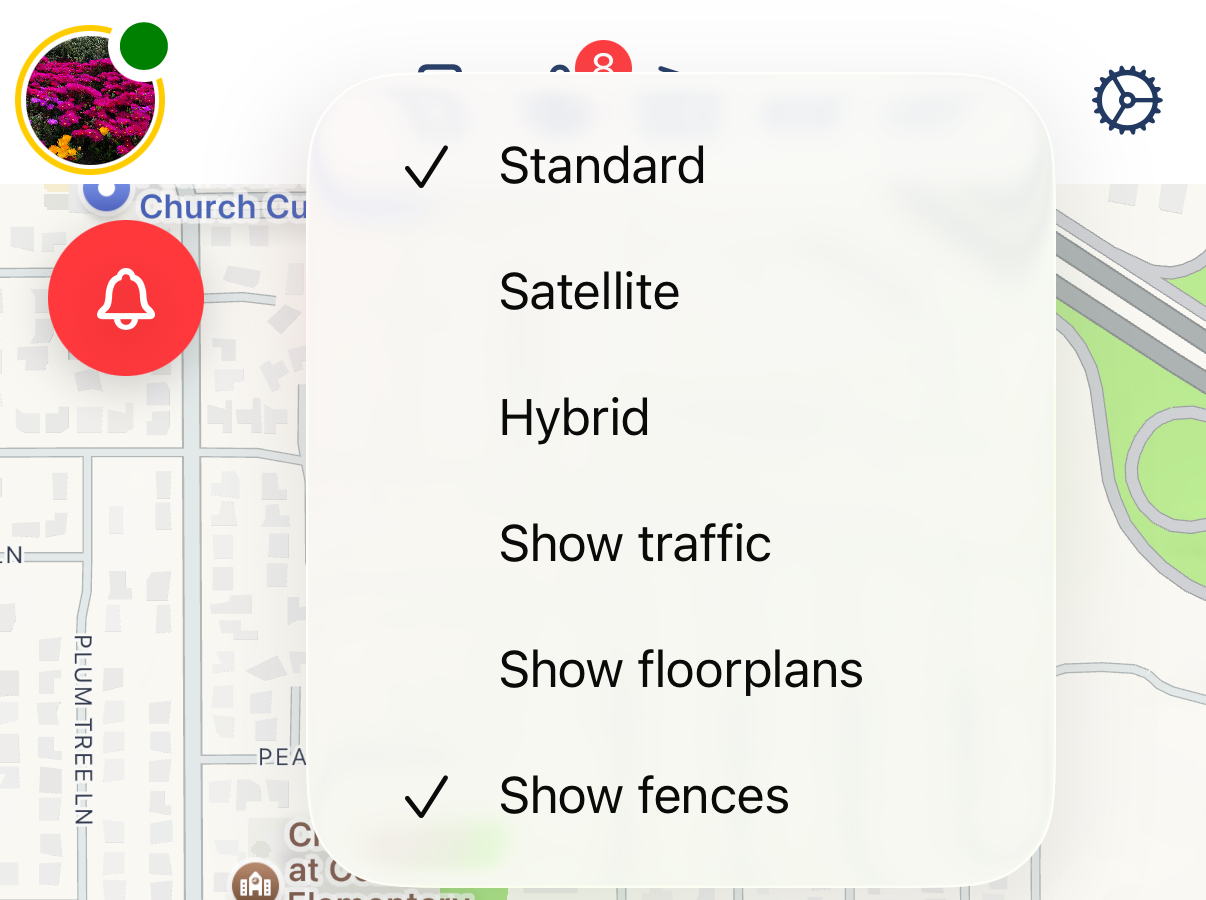
Menu Bar - Geofence
Settings
The settings menu can be accessed via the cogwheel icon in the menu bar.

Menu Bar - Settings