Run Android Application
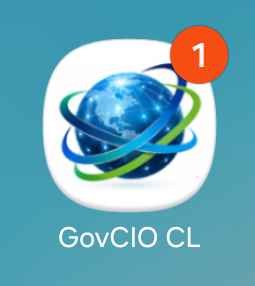
Launch the GovCIO COMMANDLINK v2 app. Listed below is the icon that should be in your installed apps.
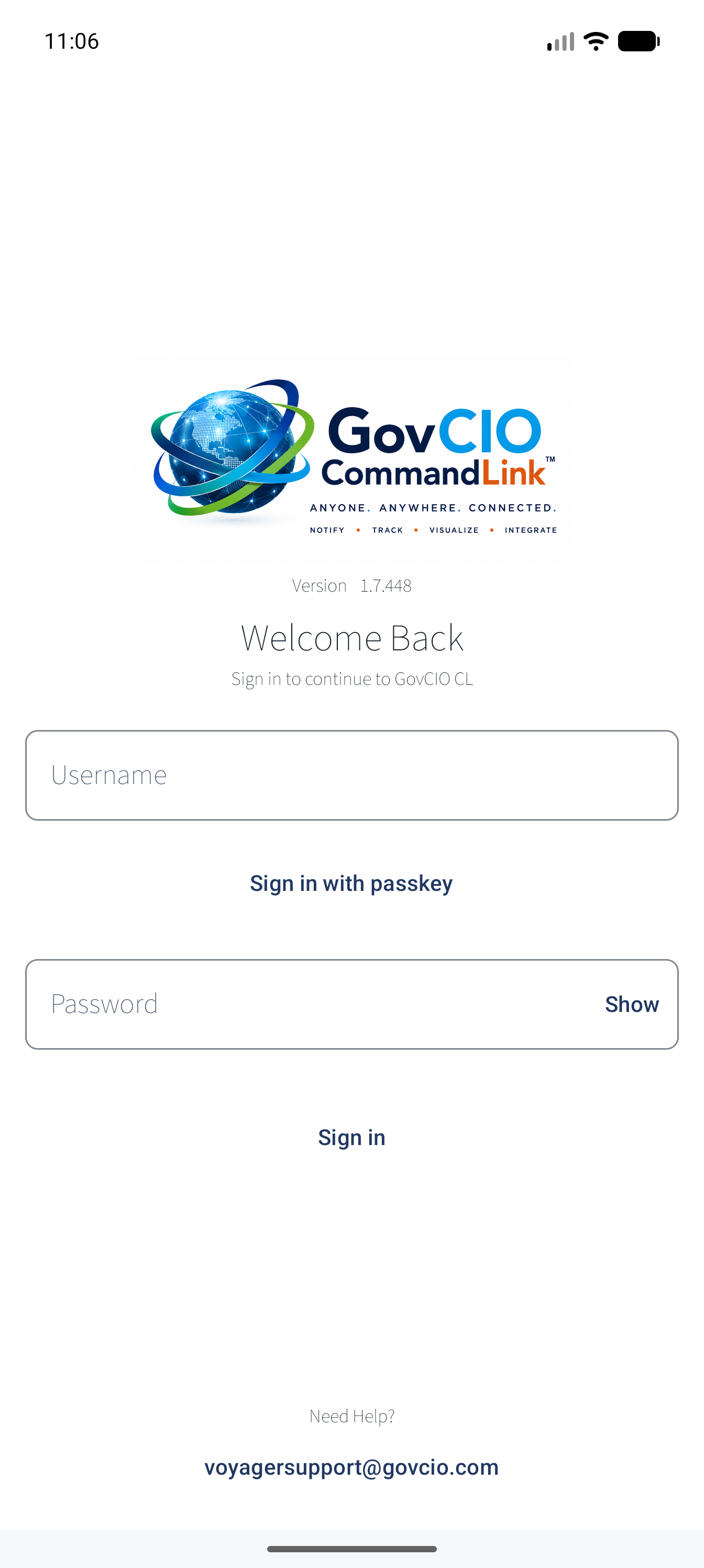
On the first launch, you will need to enter a unique Device ID. The Device ID is typically your mobile telephone number, but it can be any unique identifier.
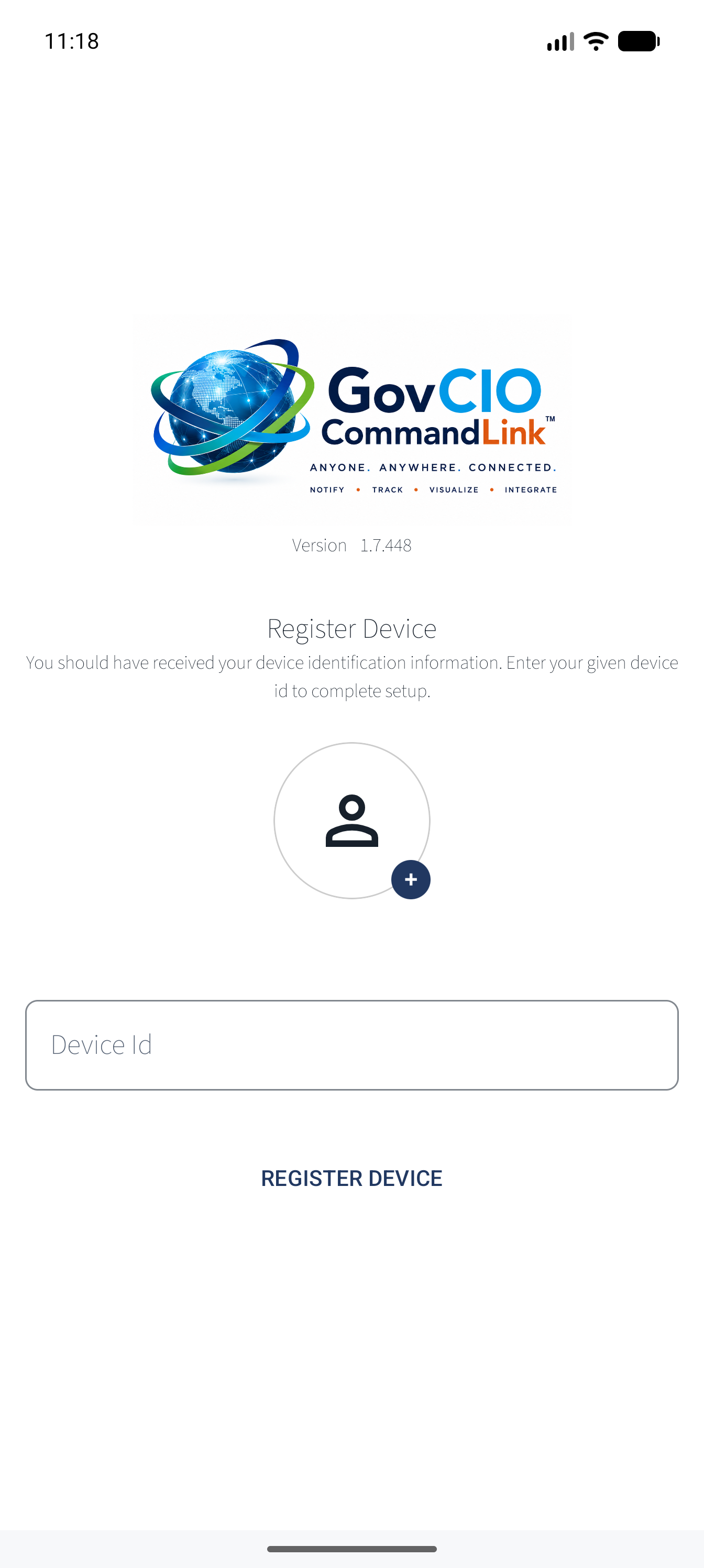
GovCIO COMMANDLINK Device ID Entry
Note
If an incorrect ID is entered, a notification message will be displayed to the user.
Contact COMMANDLINK Support at 1-877-857-1100 or CommandLinkSupport@GovCIO.com if you need assistance with this configuration.
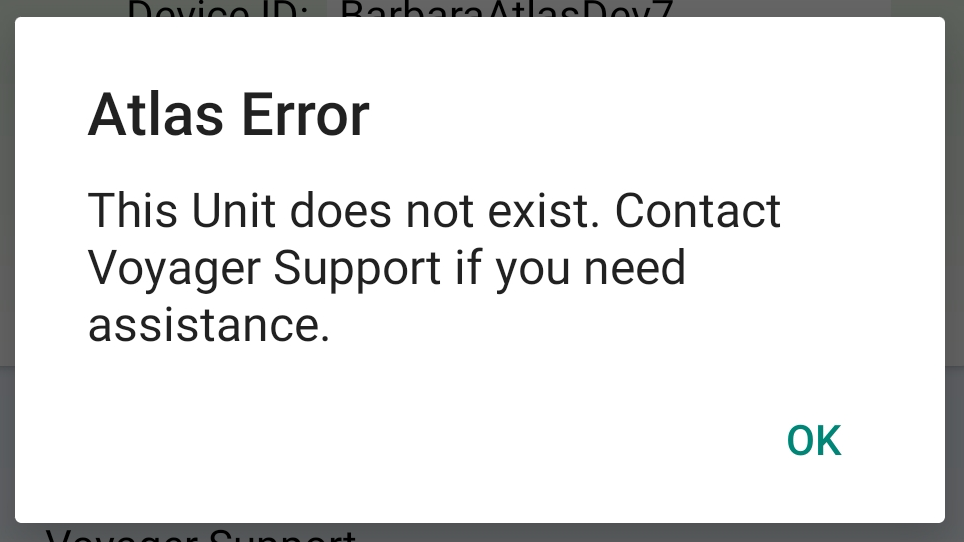
GovCIO COMMANDLINK Device ID Error
Note
The GovCIO CL URL should be: voyagertrack.salientcrgt.com.
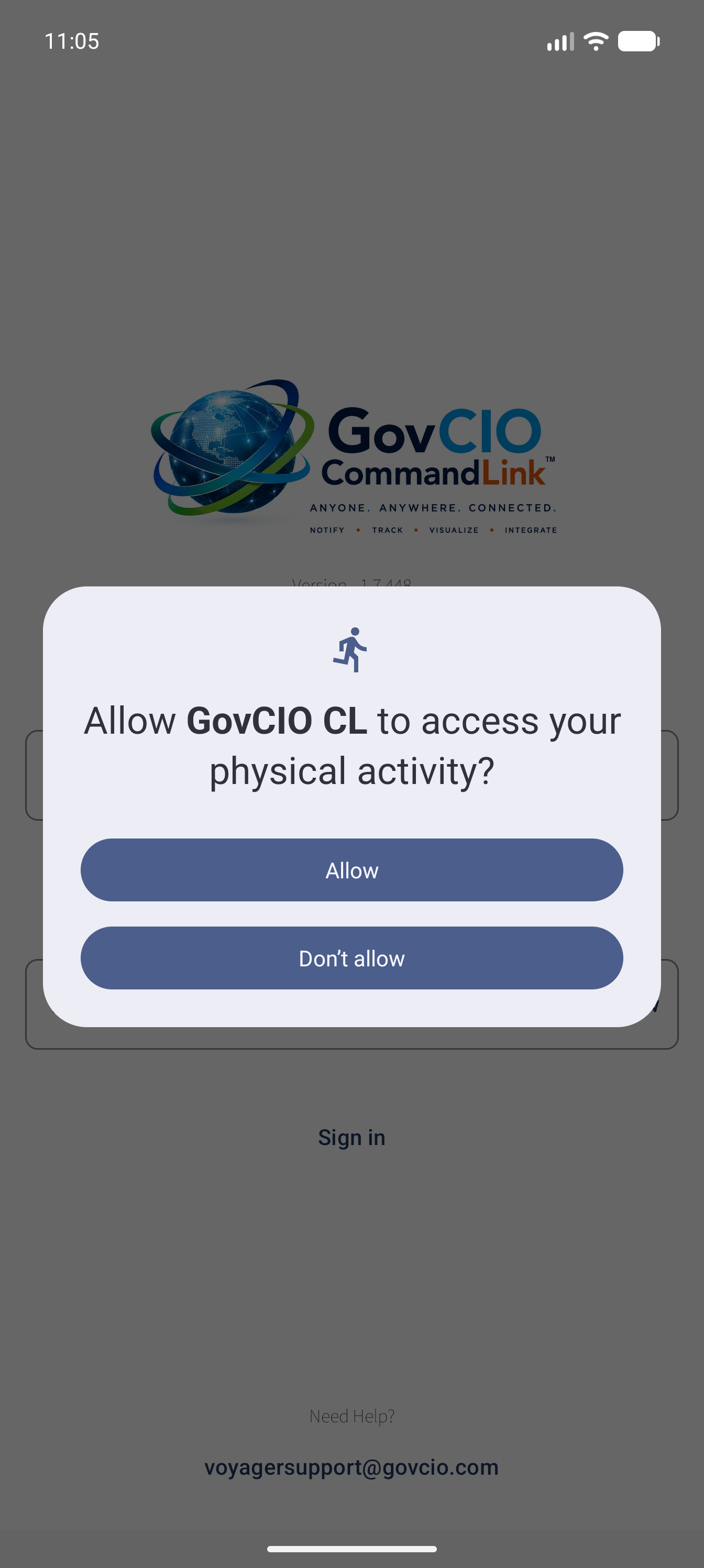
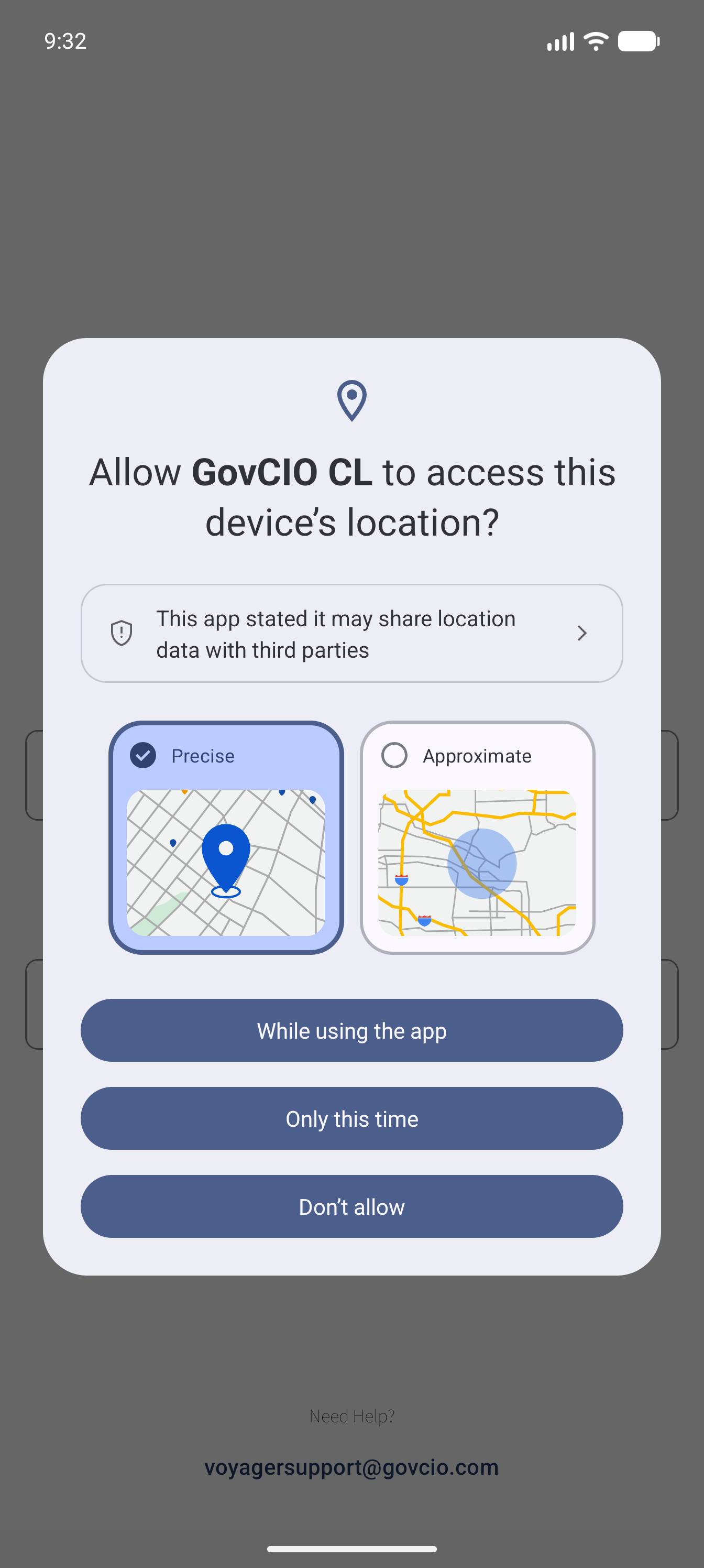
On the first launch, the app will ask for permission for several items. It is important to allow these permissions for the app to function properly. The app relies on each of these permissions being granted. If they are not granted, various features will not function and the user may not be fully connected to the organization.
View Map
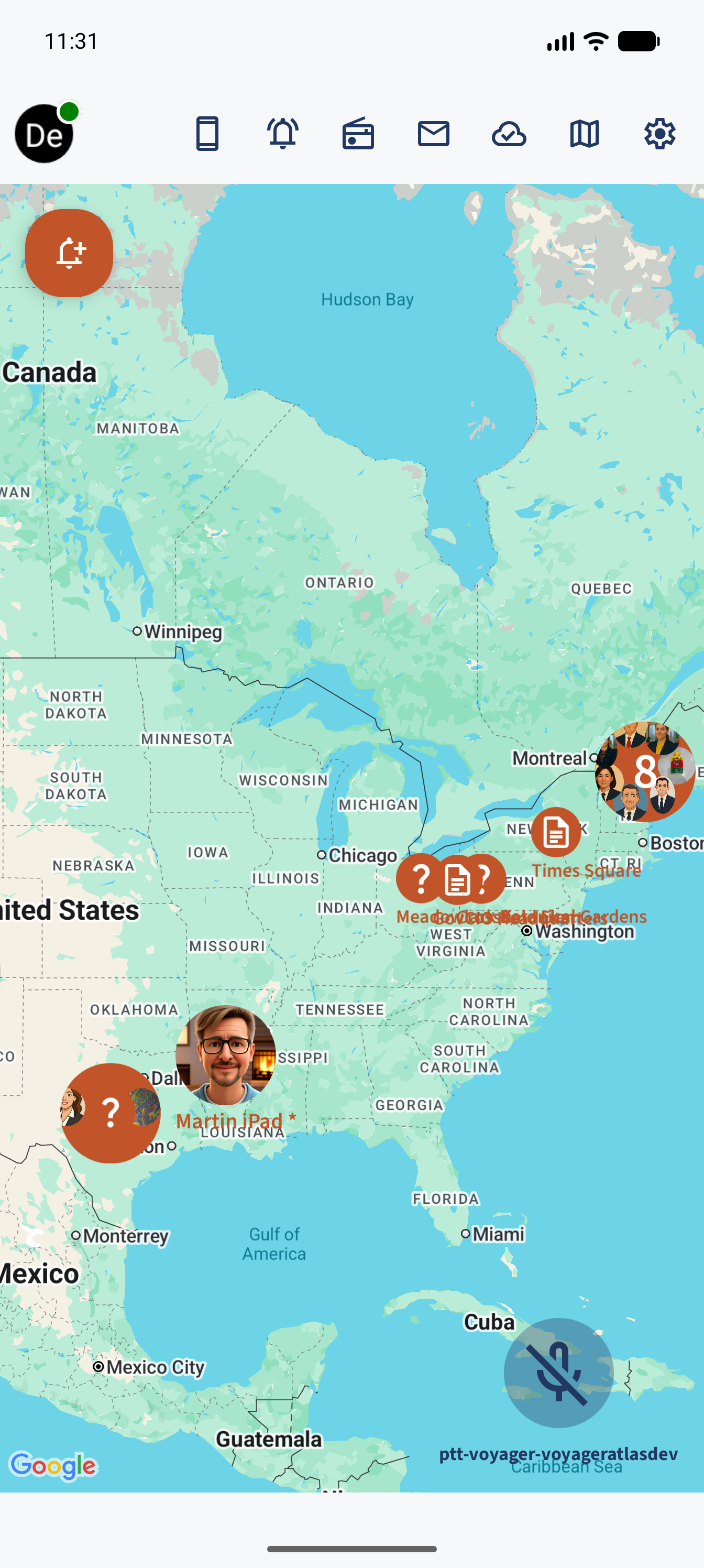
GovCIO COMMANDLINK v2