Alerts
GovCIO COMMANDLINK can be used to view and initiate notifications or alerts. In the app, you may generate your own alerts or view other alerts and notifications generated by administration or other users.
Initiating an Emergency Alert
A GovCIO COMMANDLINK emergency is triggered by tapping the red bell icon.
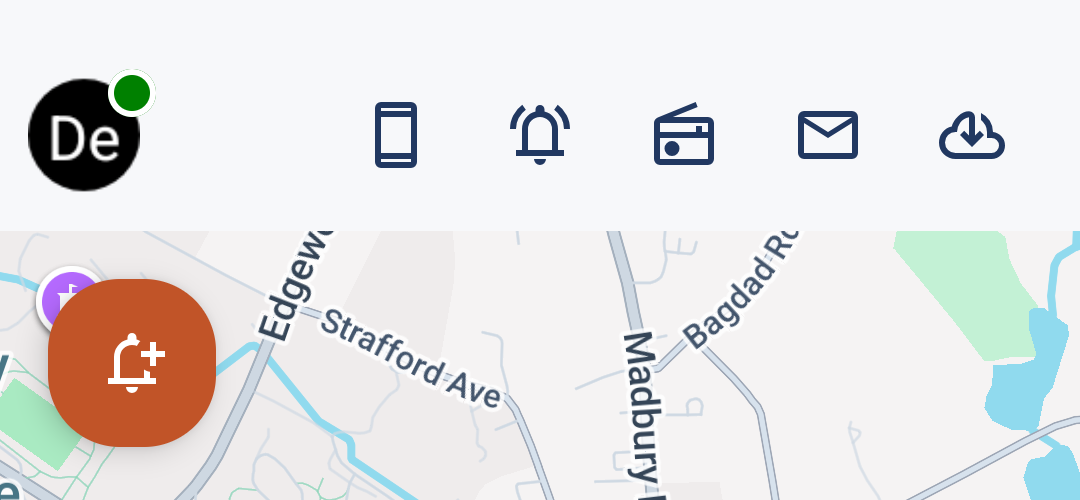
Emergency Button
After you tap the red bell, the app displays an activation prompt. The prompt shows a countdown before the alert is sent to the group.
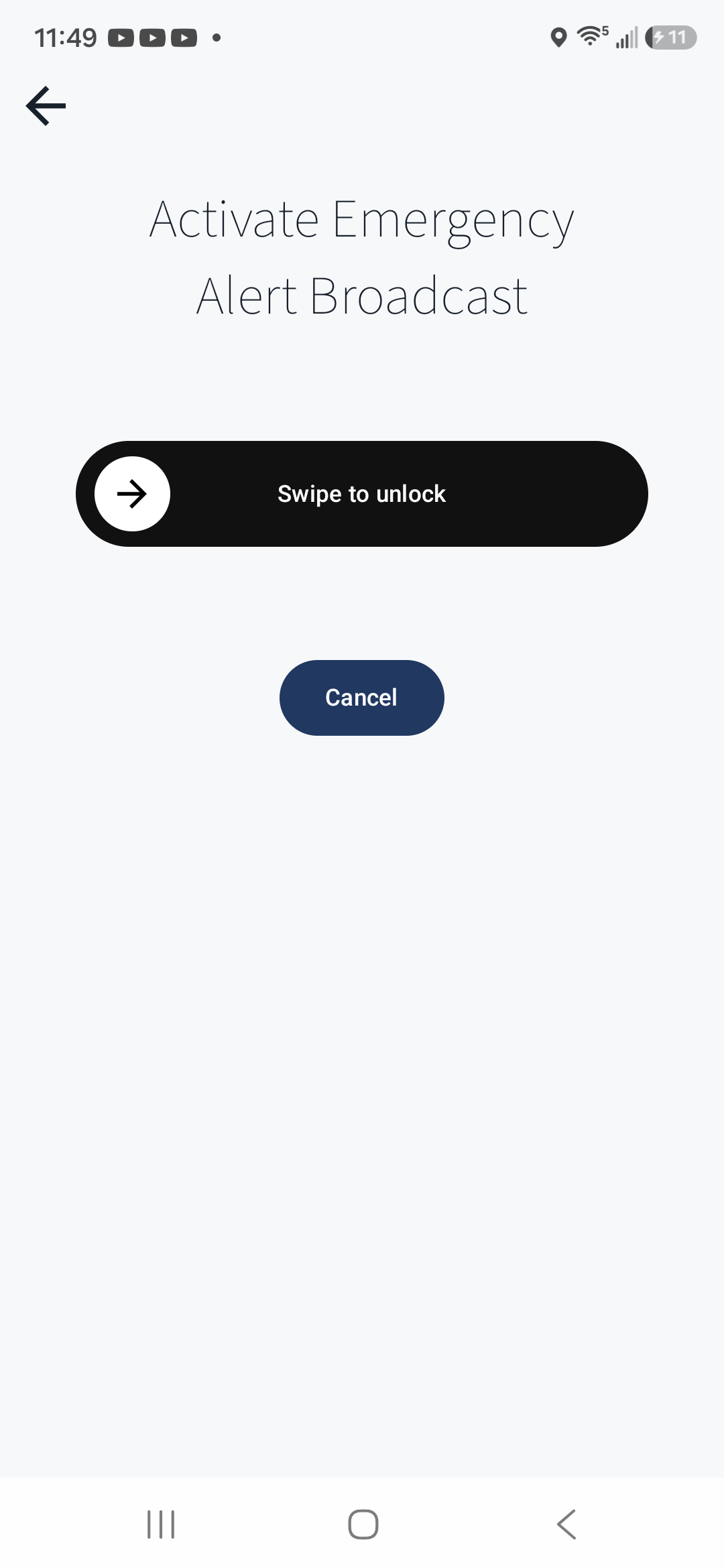
Emergency Alert - Activate Emergency
Cancelling an Emergency Alert
After triggering a GovCIO COMMANDLINK emergency, you have a few seconds to cancel the alert if needed.
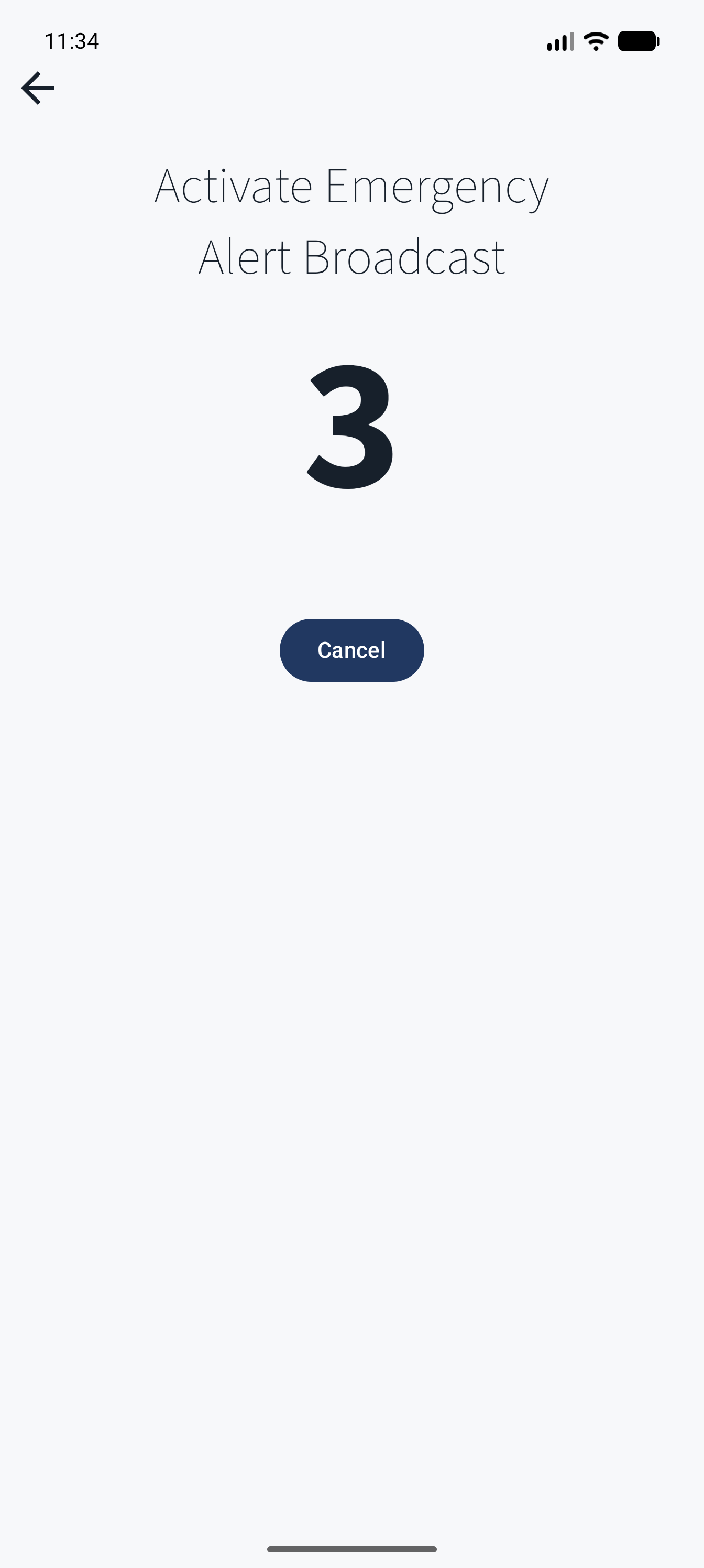
Emergency Alert - Option to Cancel
Viewing Alerts
Alerts can be viewed from the Alerts tab. The alert list displays active alerts that have been reported by users or received from the system.
Each alert entry includes the alert type, the reporting user, and the time the alert occurred. The alert list also provides quick action controls so users can respond without leaving the alert view.
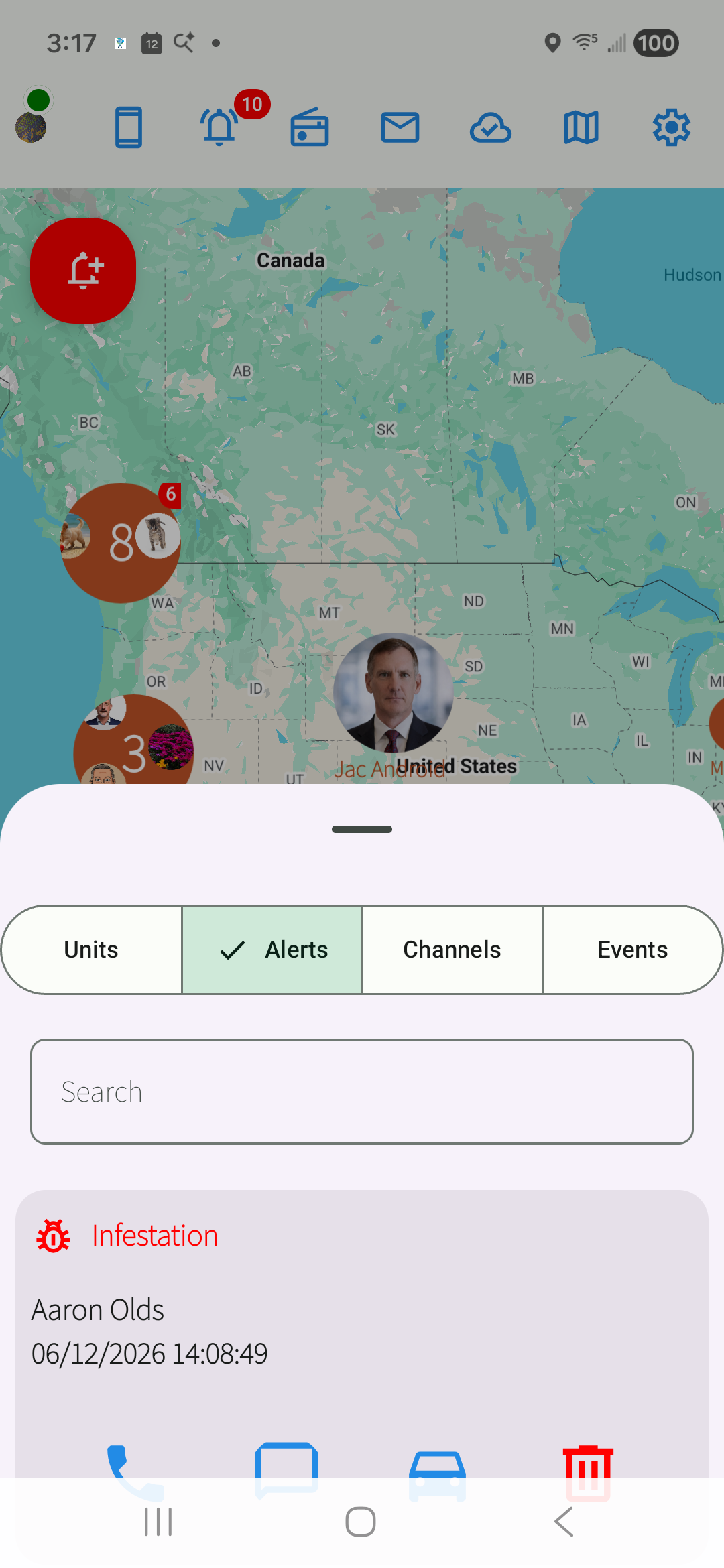
Alerts List
Users can search the alert list to find a specific alert or reporter.
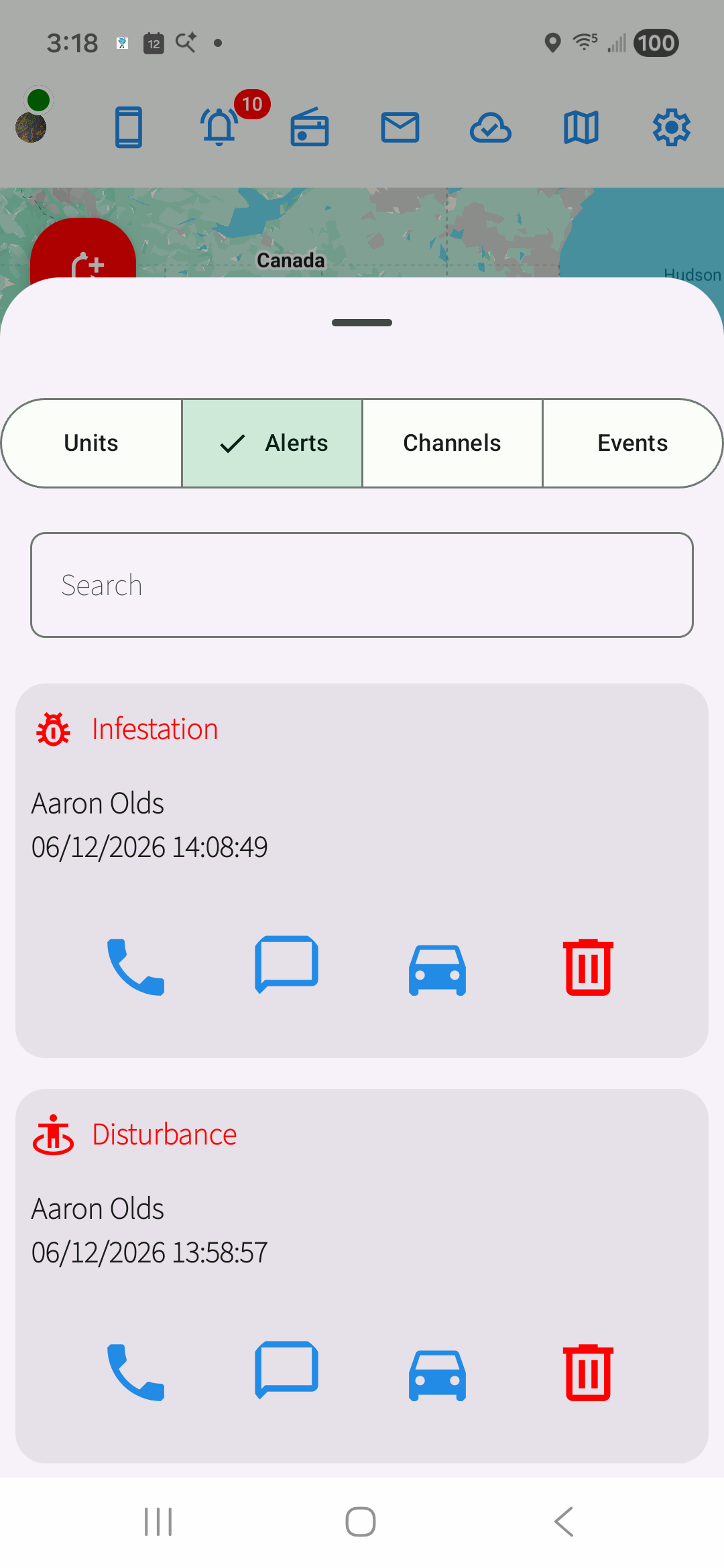
Expanded Alert List
Selecting an alert opens additional information about the alert.
Interacting with Alerts
Users can interact with an alert from the alert list or alert details view. Available actions may include:
View alert details
Call the reporting user
Send a text message to the reporting user
Navigate to the alert location
Delete or remove the alert
The details view provides more information about the alert, including location, who reported it, and when it occurred.
Removing Alerts
An alert can be removed when it no longer requires attention or was created in error. Removing an alert requires the user to provide a reason and additional context.
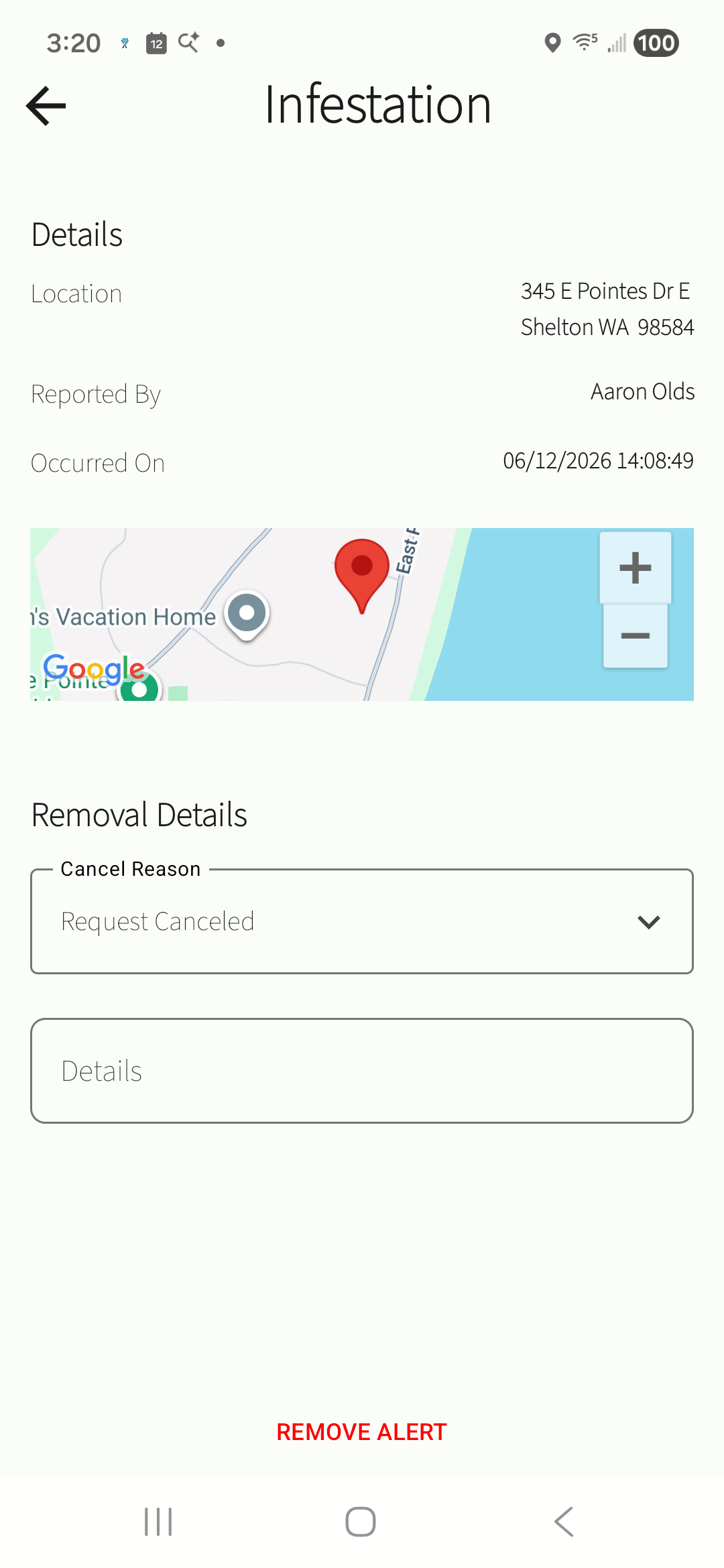
Alert Removal Details
To remove an alert:
Select the delete icon for the alert.
Choose the reason the alert is being removed.
Enter details that explain why the alert is being removed.
Select Remove Alert.
The removal reason and details provide an audit trail for why the alert was closed or dismissed.